How to bring in a D&D Beyond character
The short answerSave your character as a PDF on D&D Beyond: open it, press Manage, choose Export to PDF and download the file. In Archivist, press New character, then the D&D Beyond card, drop the PDF in and press Import. Archivist fills the Builder step by step, and you check everything before you press Finish and open sheet.
- For players
- 11 short steps
- Updated 7 November 2026, for Archivist 1.4.0
Archivist is not affiliated with D&D Beyond or Wizards of the Coast.
Save your character as a PDF
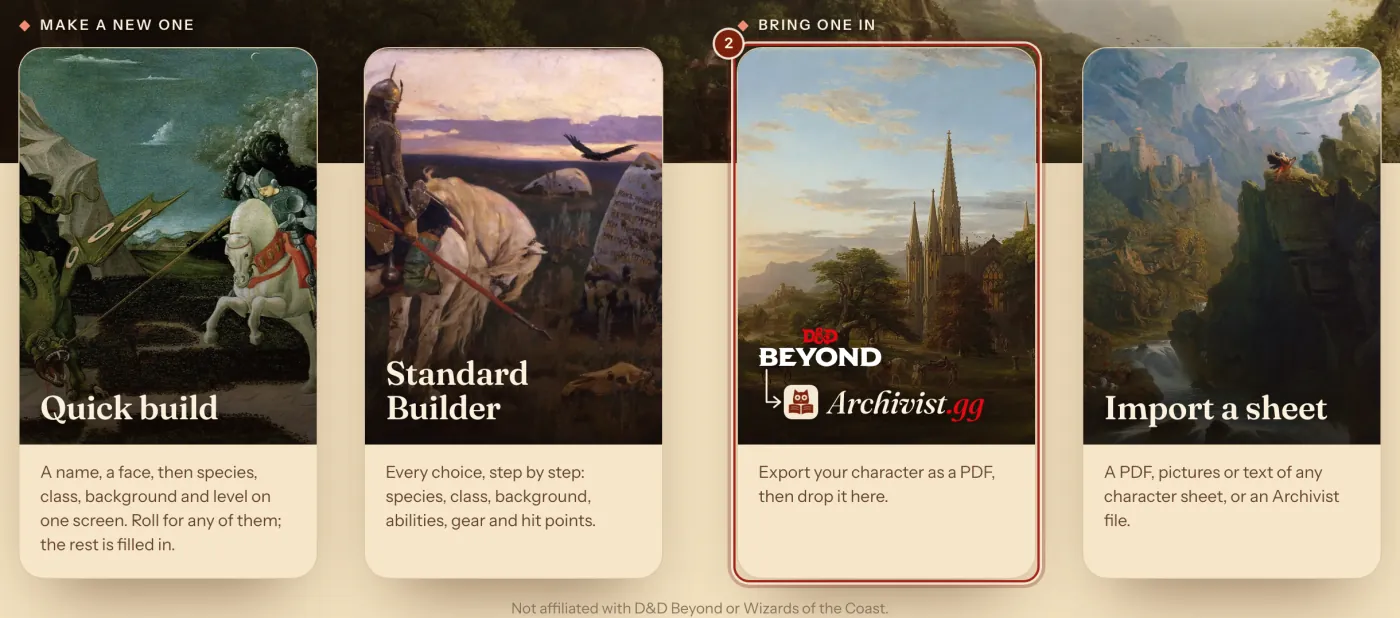
- On the Characters page in Archivist, press New character.
- Under Bring one in, press the D&D Beyond card.
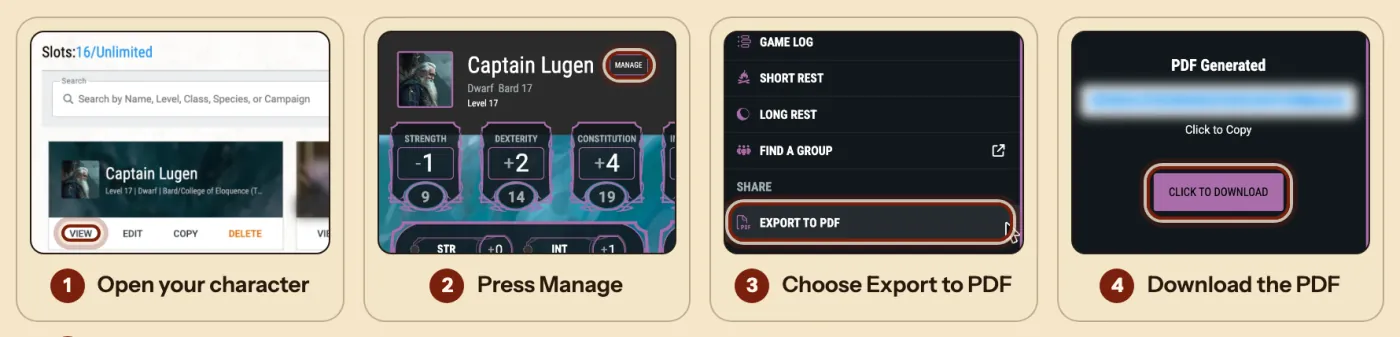
- On D&D Beyond, open My Characters and press View on your character.
- Press the small Manage button next to the name.
- Choose Export to PDF, near the bottom of the panel.
- When it says PDF Generated, press Click to Download and keep the file.
Bring it in
- Drop the PDF on the drop place, or press Choose PDF. On a phone, choose it from Files or Downloads.
- Press Import.
- The Builder opens and fills itself in, step by step. If the PDF leaves something out, such as a subclass, a question appears on the right: pick an answer, or Leave it open.
- When it says All filled, check each step on the left. Where the PDF and the rules give different numbers, the Builder's numbers stand, and Archivist lists the differences.
- On Hit points, press Finish and open sheet. Your character joins your Characters page.
Homebrew in the PDF that no compendium has is offered one entry at a time: Import it or Leave it out.
What to expect
A PDF holds what D&D Beyond printed, so some things need your eye in the review.
| In the PDF | In Archivist | Worth checking |
|---|---|---|
| Scores, level, class, species | Built into a working sheet that works out every number. | That Armor Class and hit points match your table. |
| Spells and items | Linked to the SRD where it holds them. | Anything marked as a note in the review. |
| Homebrew it finds | Offered as new entries in your own compendium. | You choose what comes in. |
Questions
Does my D&D Beyond character change?
No. You download a copy of it as a PDF, and your character stays where it is.
Can I bring in a sheet from somewhere else?
Yes. Import a sheet, beside the D&D Beyond card, takes a PDF, pictures or text of any character sheet, or an Archivist file. See Import a character from a PDF or a photo.
Can I bring my homebrew classes over too?
Homebrew it finds in the PDF is offered in the review. To write a class yourself, see Make a homebrew class.
Is my character the same on my phone afterwards?
Yes. It stays in sync on every device you sign in on.
Keep going
- Import a character from a PDF or a photo of your sheetDrop in a PDF, photos or text of any sheet, and it fills the Builder.
- Move from another character app or game table appEvery way in on one page: a PDF, photos, text or an Archivist file.
- Make a character, step by stepQuick build for one screen, Standard Builder for every choice.