How to make a homebrew class and play it
The short answerDescribe your class to the Archivist Inquiry Assistant and approve what it suggests, or copy the closest class and change its text by hand. Then add it to a character in the Builder like any other class. The sheet works out hit points, saves and proficiencies from your class, and shows its features level by level, with tick boxes for their uses.
- For players and DMs
- 27 short steps
- Updated 7 November 2026, for Archivist 1.4.0
This page's example is the Tidewarden, a class made up for the Drowned Coast, Archivist's own sample homebrew.
Make it with the Archivist Inquiry Assistant
- Press the owl at the right edge of the screen to open the Archivist Inquiry Assistant. On a phone, press the owl beside search.
- Describe your class in a sentence.
- Check what it suggests and press Approve. Your class is in your Compendium ready to pick in the Builder.
For exampleMake a Tidewarden class: a d10 hit die, Strength and Constitution saves, and a Tide Sense feature at level 1: as a Bonus Action, Advantage on my next attack roll this turn, twice per Long Rest.
You can undo it. Can't see the owl? Turn on Archivist Inquiry Assistant in Settings.
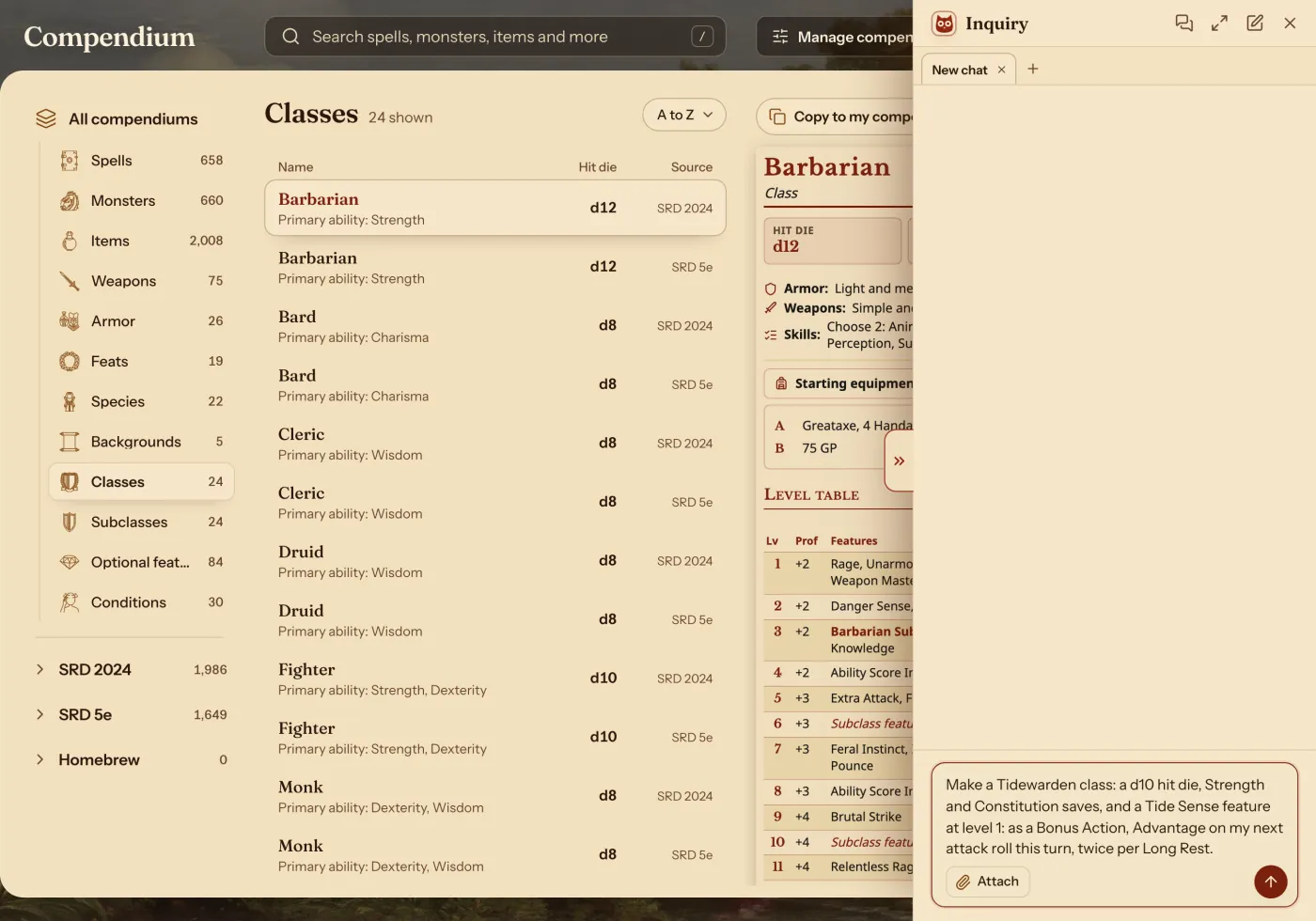
It may ask you something first. Pick an answer and press Send.
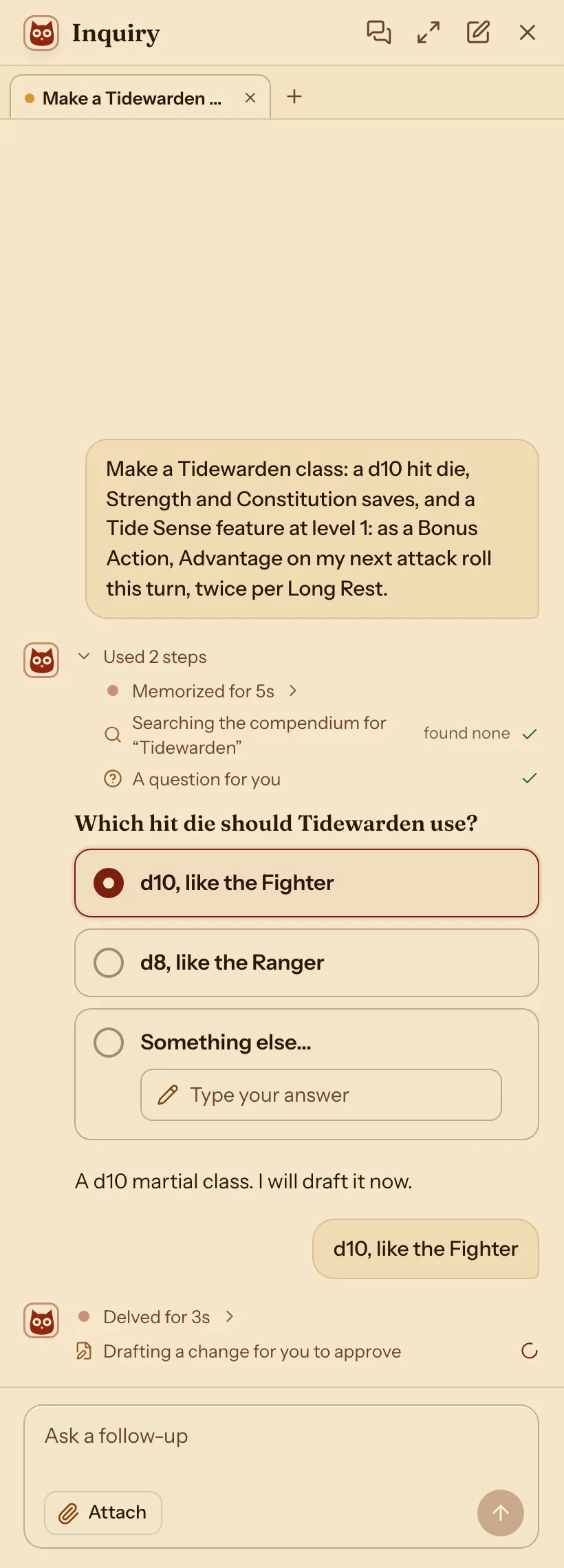
It shows what it adds. Nothing changes until you press Approve.
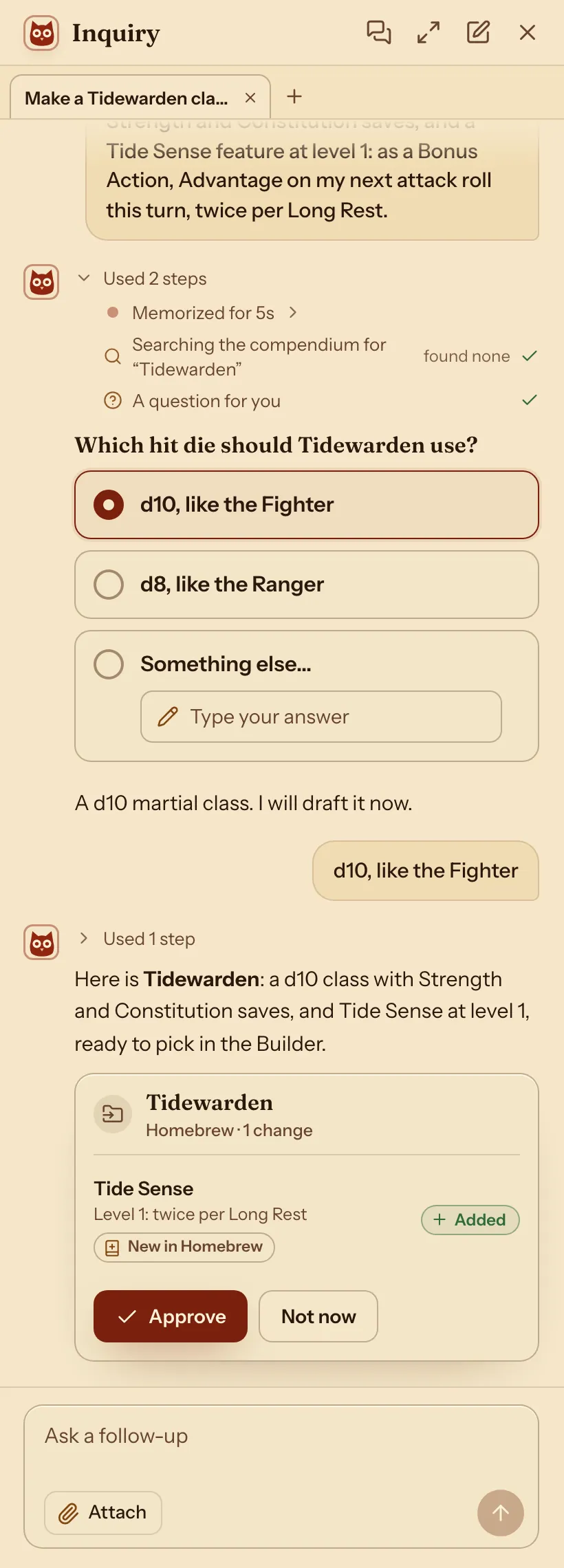
Your new class is in the Compendium.

The Compendium's Classes list: Tidewarden from Homebrew, with its d10 hit die.
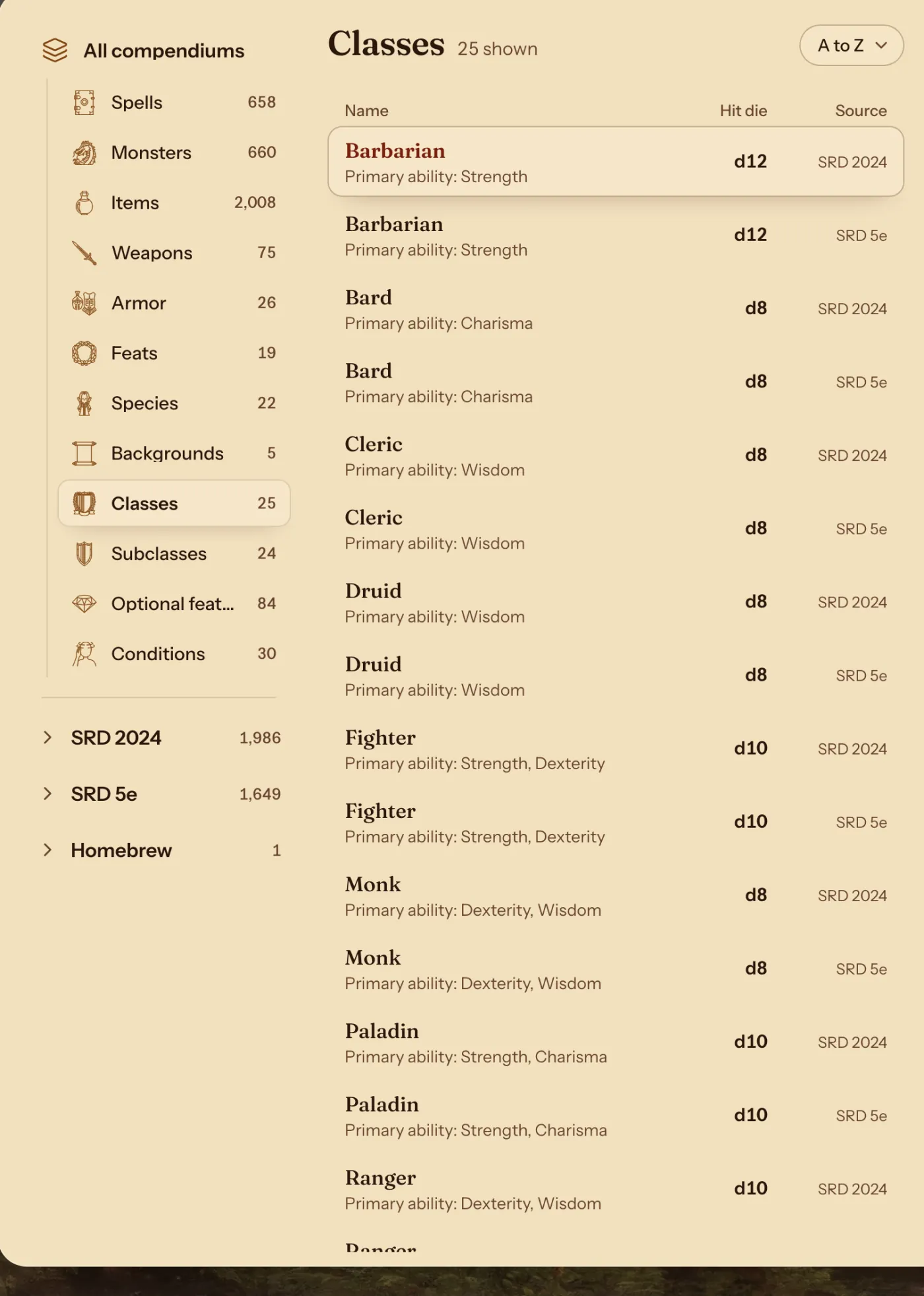
Change an existing one with the Archivist Inquiry Assistant
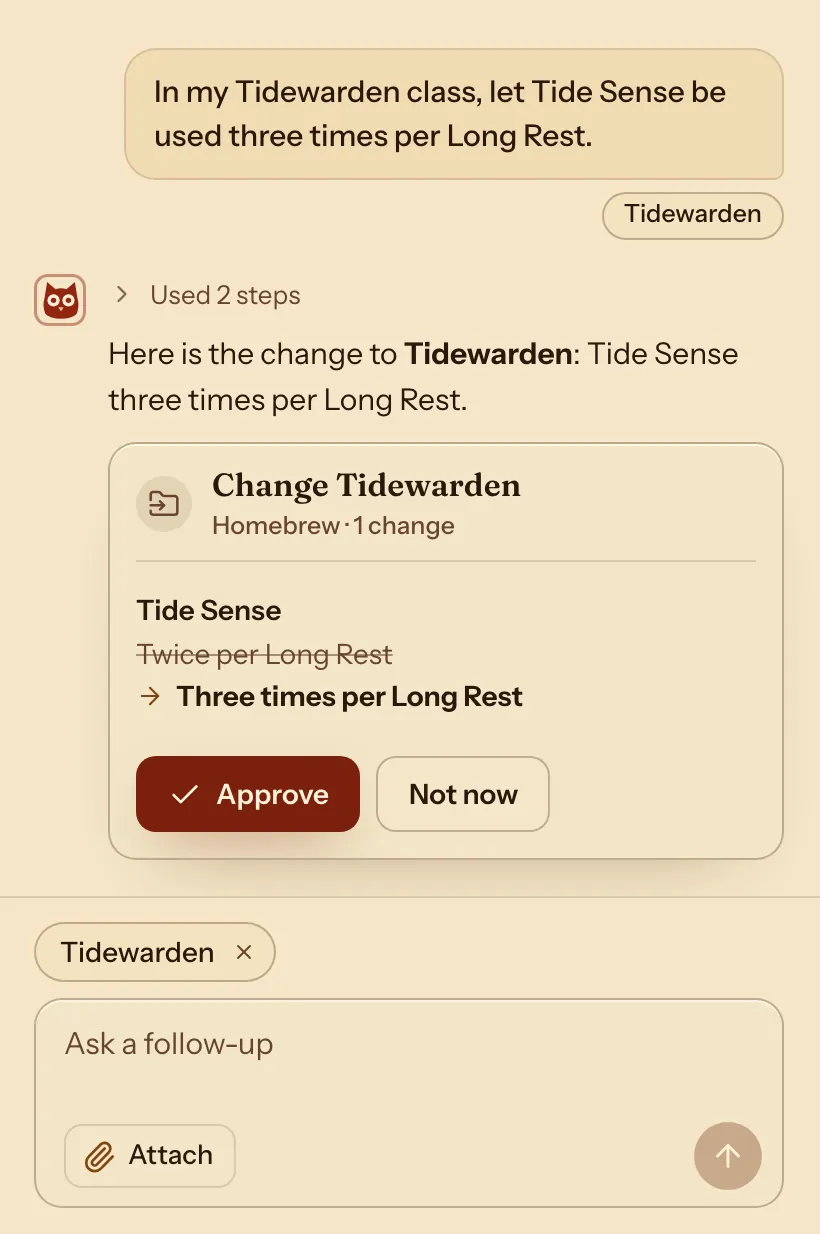
- Open the Compendium, or a sheet that uses the class, and press the owl.
- Say which class and what to change.
- Check what it suggests and press Approve. Characters who use the class change with it.
For exampleIn my Tidewarden class, let Tide Sense be used three times per Long Rest.
You can undo it.
Do it by hand: copy the class closest to your idea
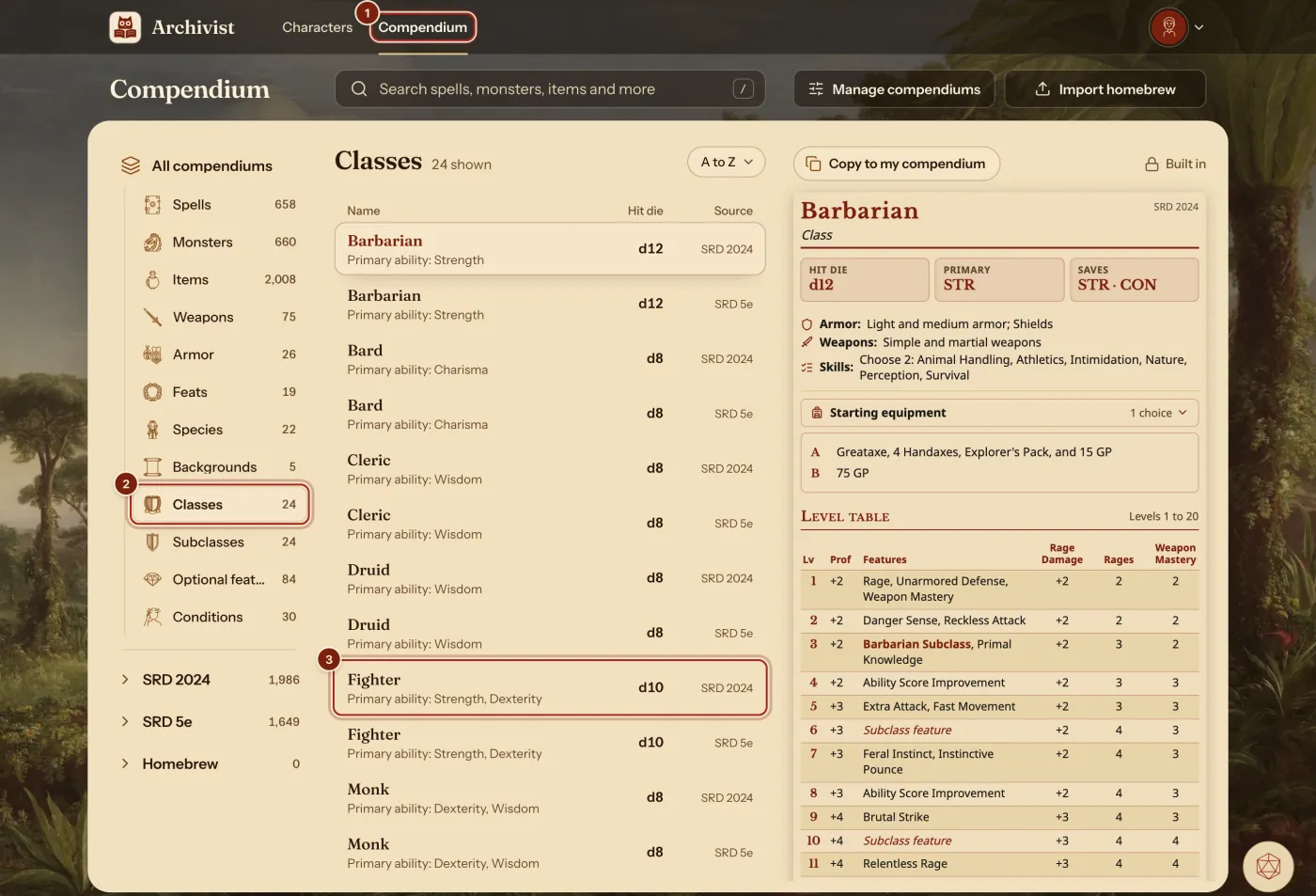
- In the top bar, press Compendium.
- In the list on the left, press Classes.
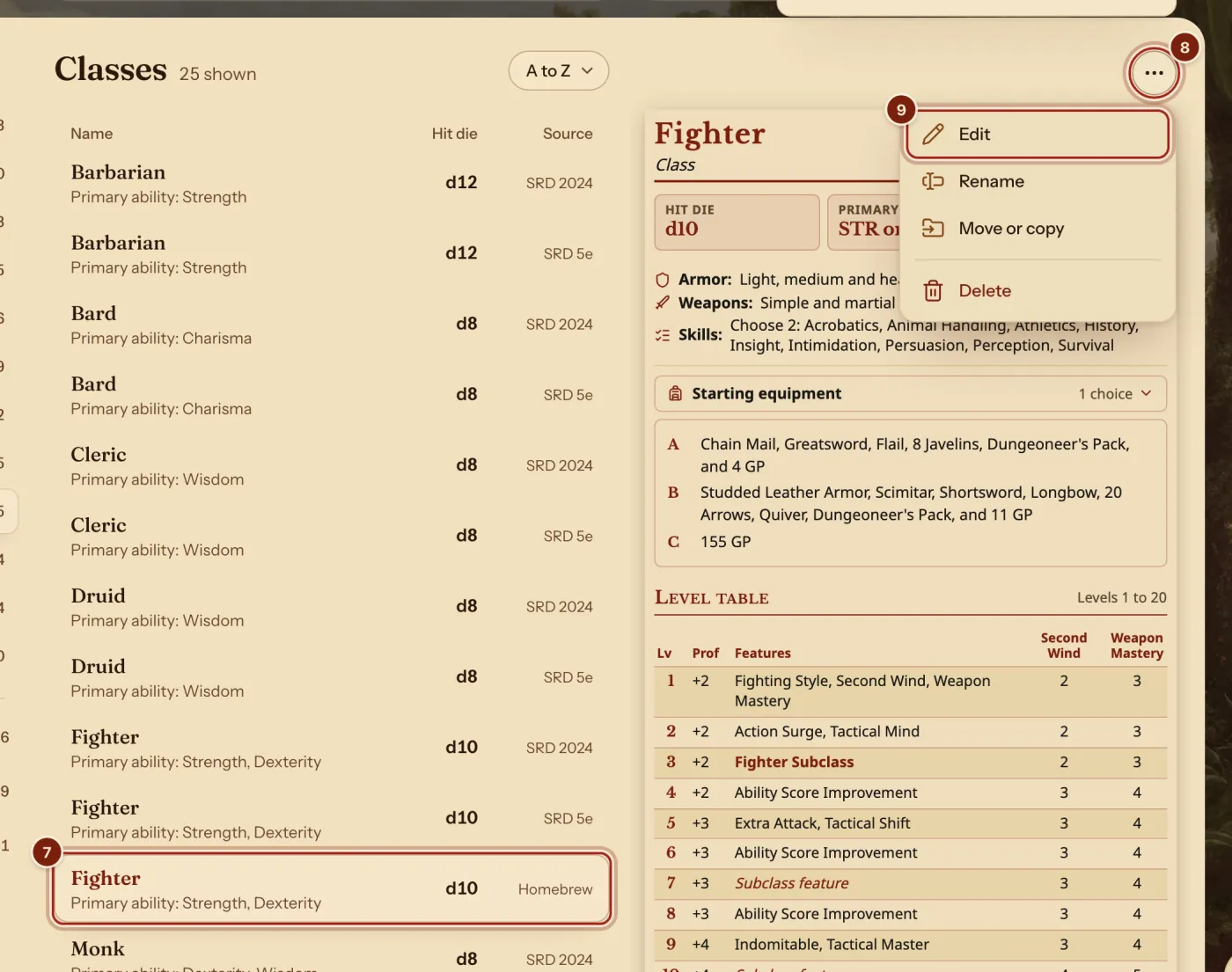
- Press the class closest to your idea. Here it is Fighter, the one from the SRD.
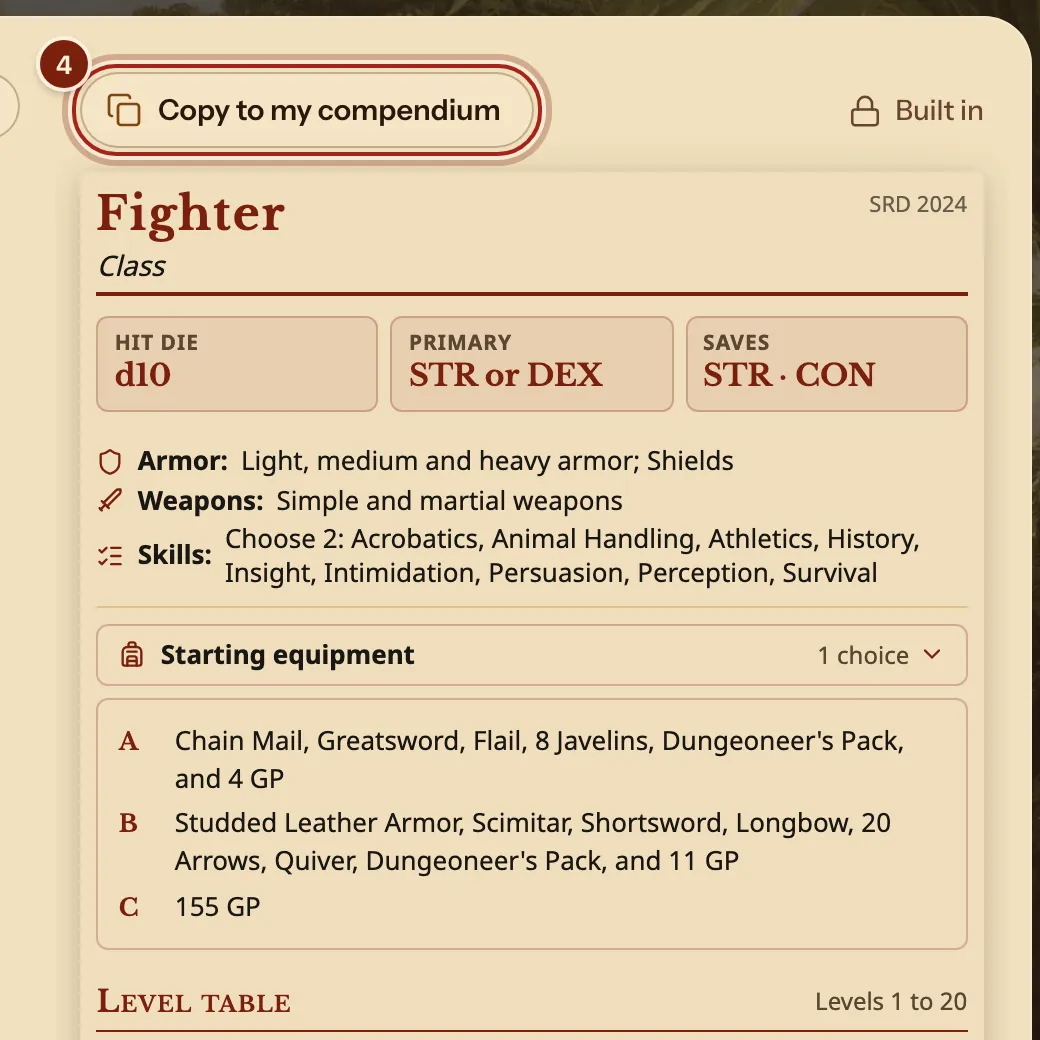
- Above the Fighter's card, press Copy to my compendium.
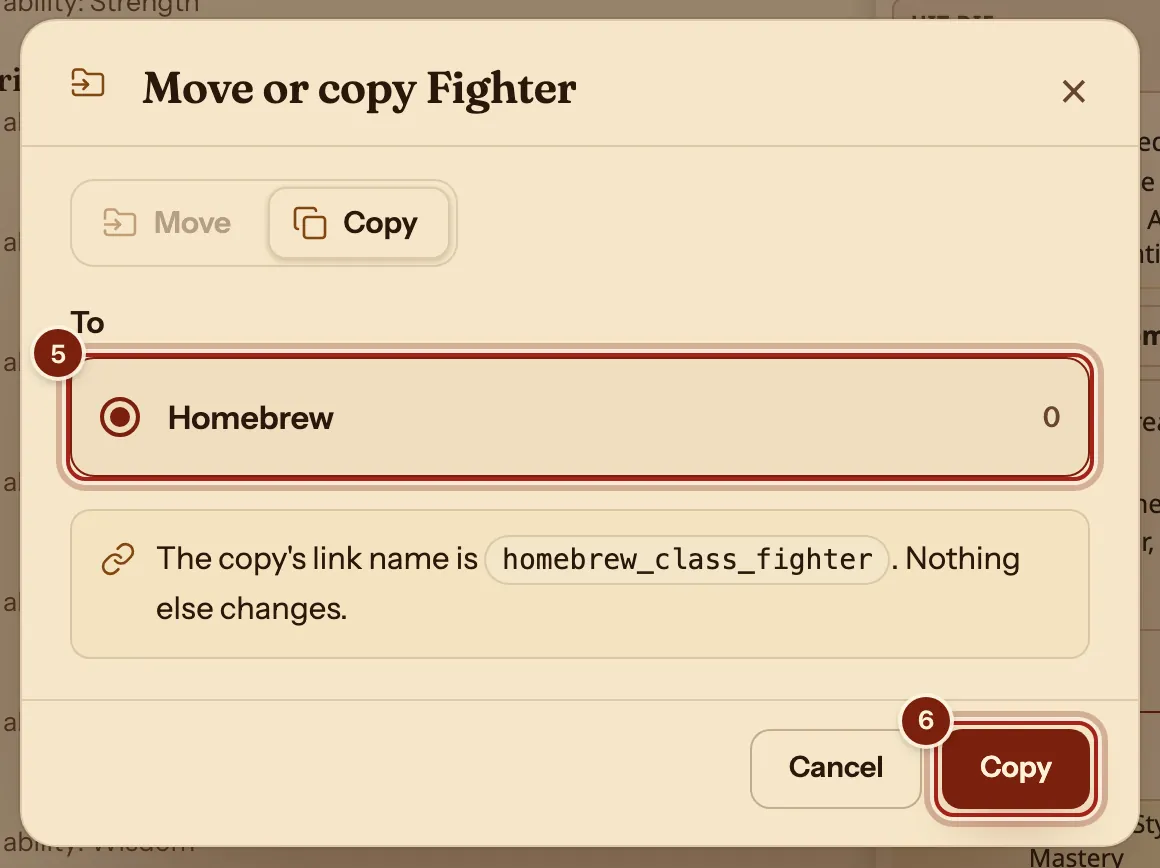
- Under To, press Homebrew. Every account starts with this compendium.
- Press Copy.
Change it into your class
- In the list, press your copy: the Fighter with Homebrew under Source.
- Above its card, press the ⋯ button.
- Press Edit.
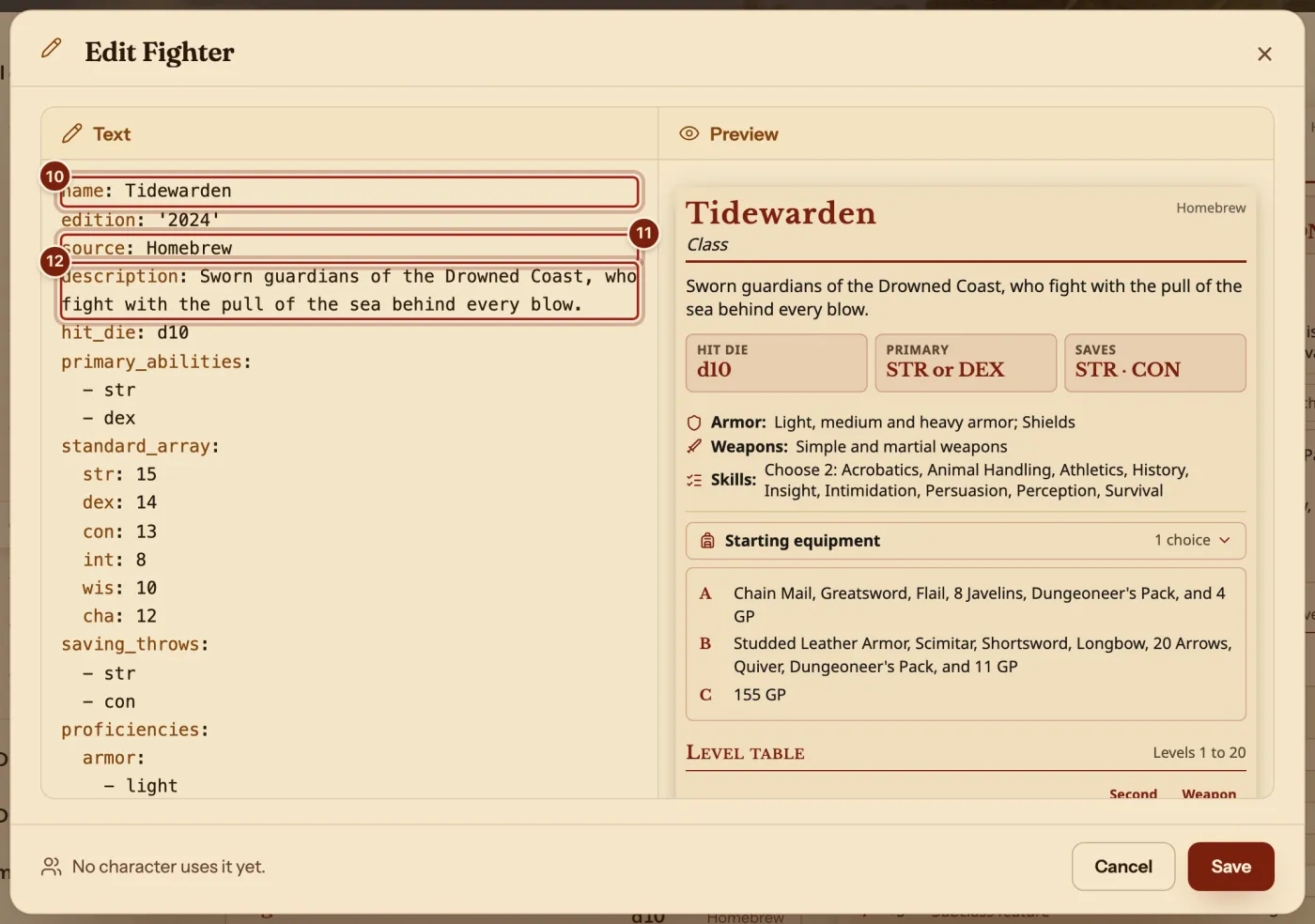
- In the Text box, change the first line to your class's name:
name: Tidewarden. - Change
source: SRD 5.2tosource: Homebrew. - Change
description: ''to one sentence about your class.
The Preview beside the text draws the class again as you type. On a phone, Text and Preview are two tabs.
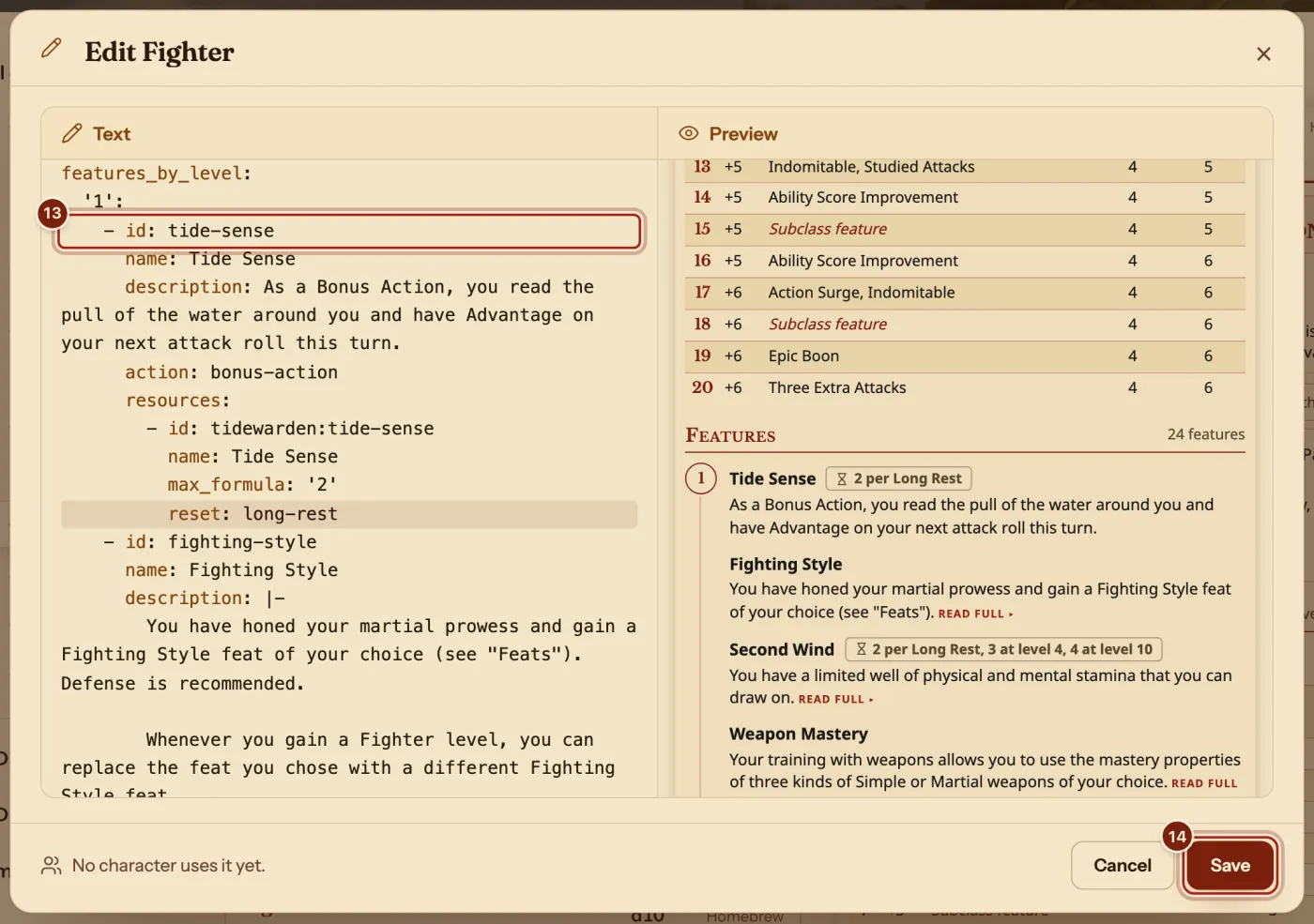
- Scroll down to the line
features_by_level:. Press at the end of the'1':line under it, press Enter, then paste these lines:A feature at level 1 with two uses- id: tide-sense name: Tide Sense description: As a Bonus Action, you read the pull of the water around you and have Advantage on your next attack roll this turn. action: bonus-action resources: - id: tidewarden:tide-sense name: Tide Sense max_formula: '2' reset: long-rest - Press Save.
These lines add a level 1 feature called Tide Sense, with two uses that come back on a Long Rest. Keep the spaces at the start of each line.
Put it on a character and play
- In the top bar, press Characters.
- Press New character.
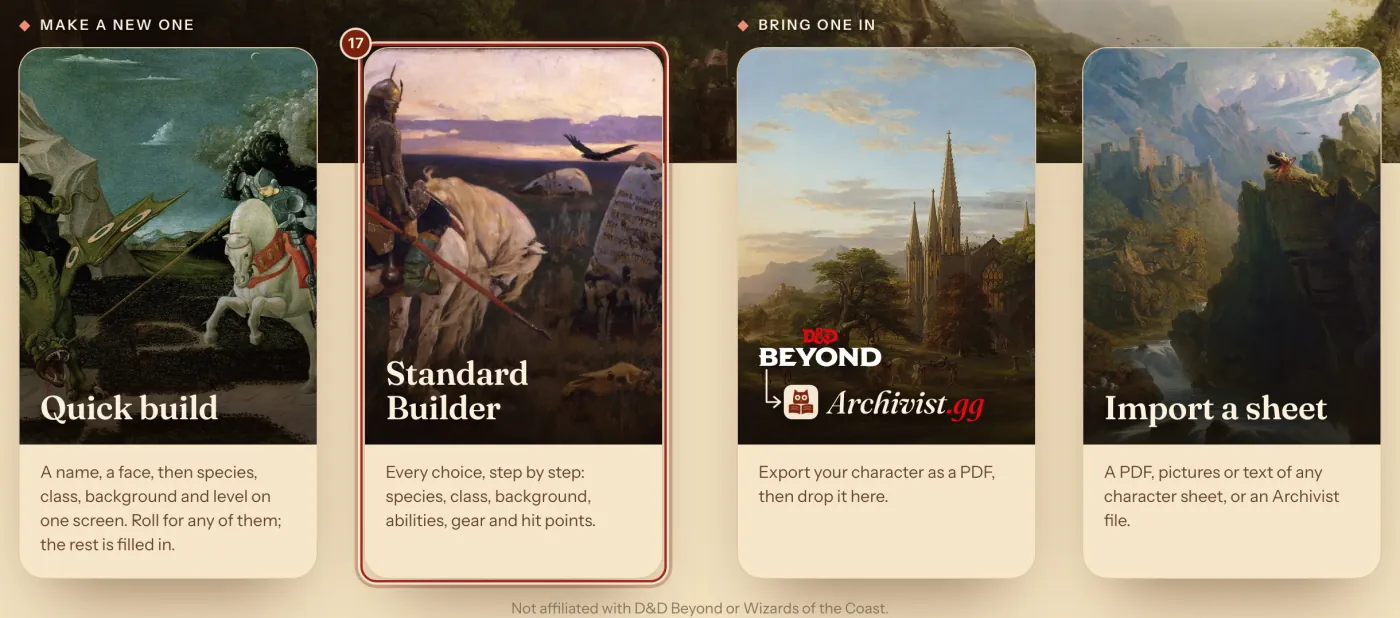
- Press Standard Builder.
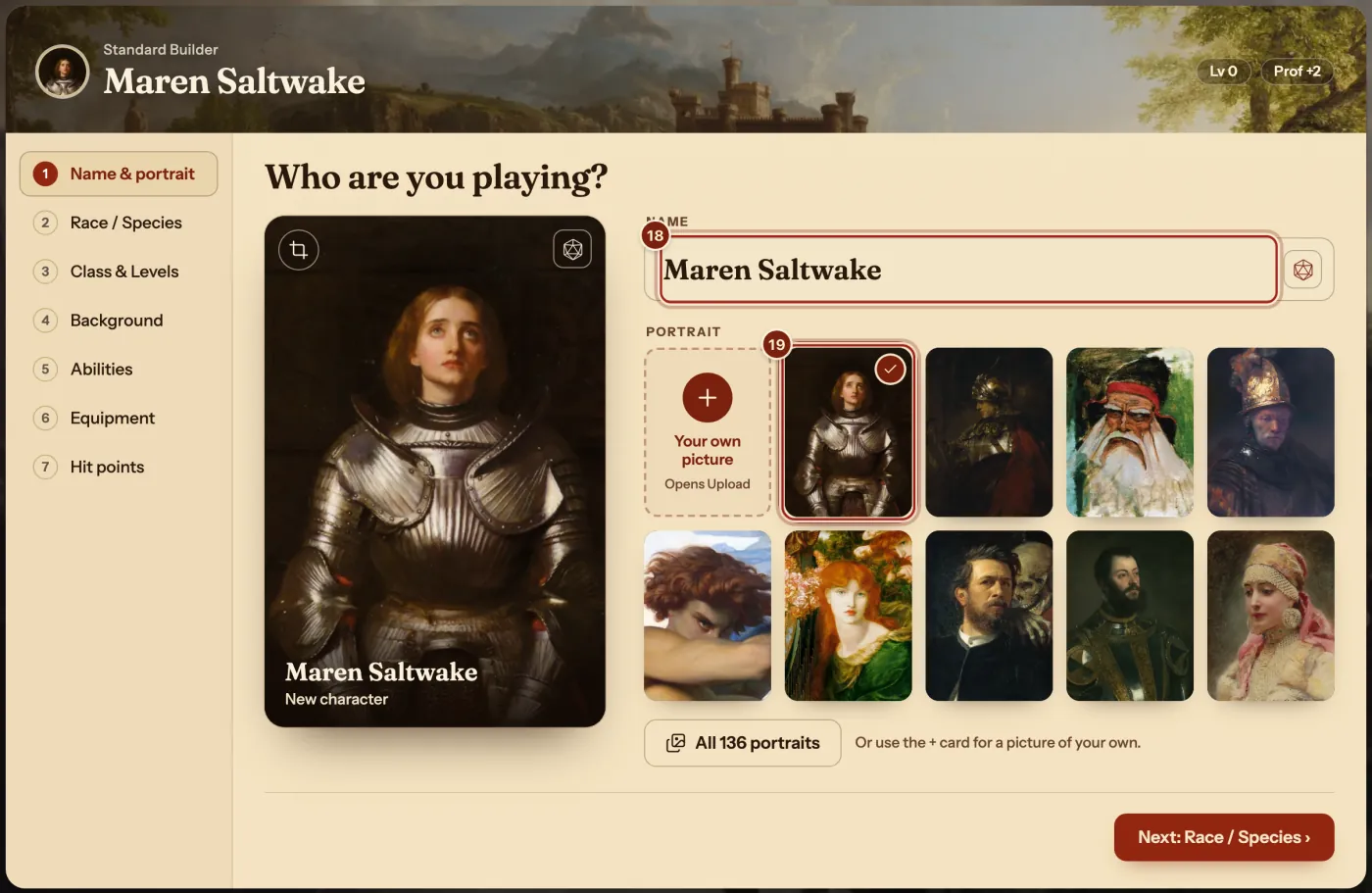
- Type your character's name under Name.
- Press a portrait.
- On the left, press Class & Levels.
- Press + Add class.
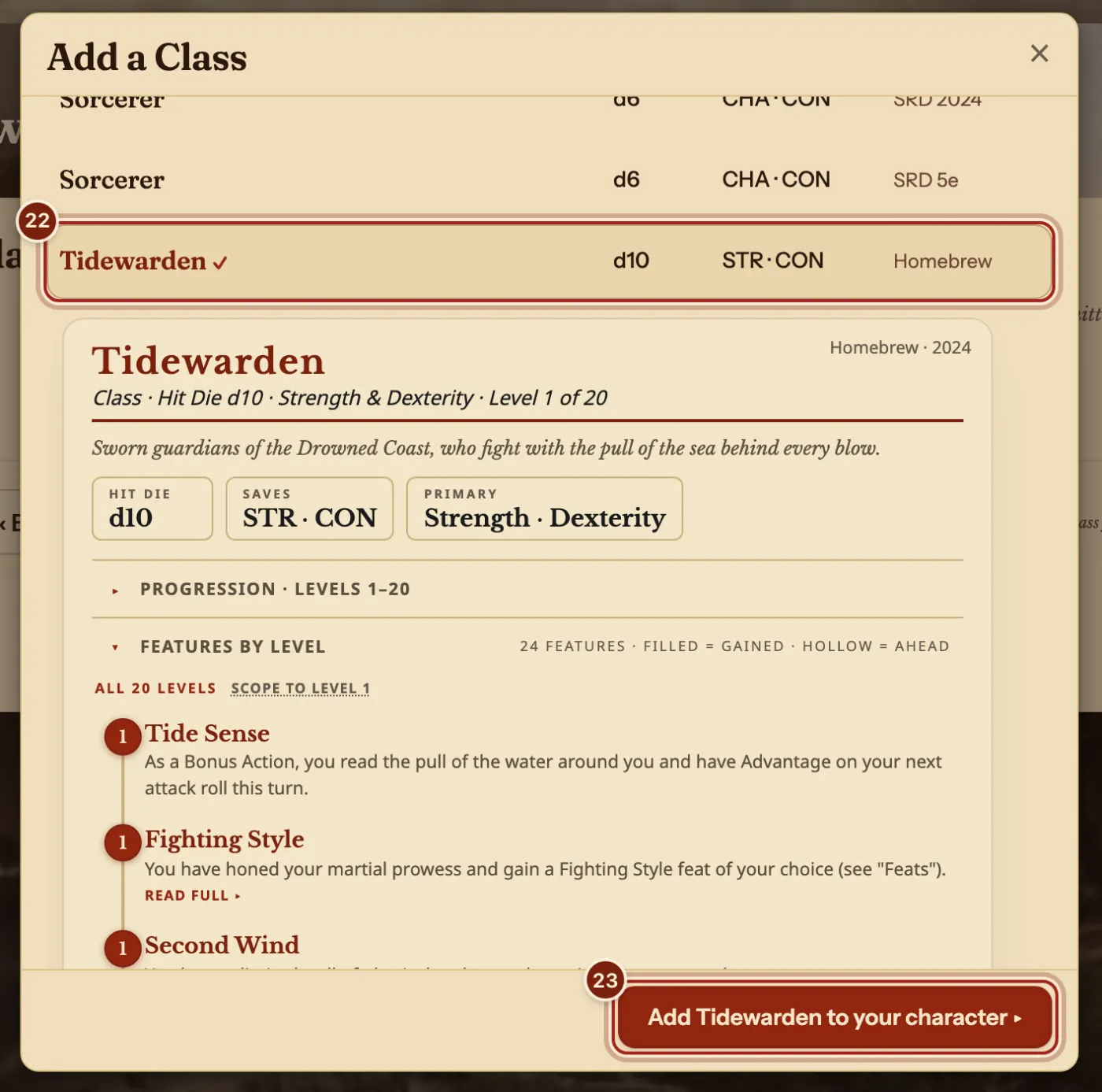
- In the Add a Class window, press your class. Homebrew sits in the same list as the SRD, so here it is Tidewarden.
- Press Add Tidewarden to your character.
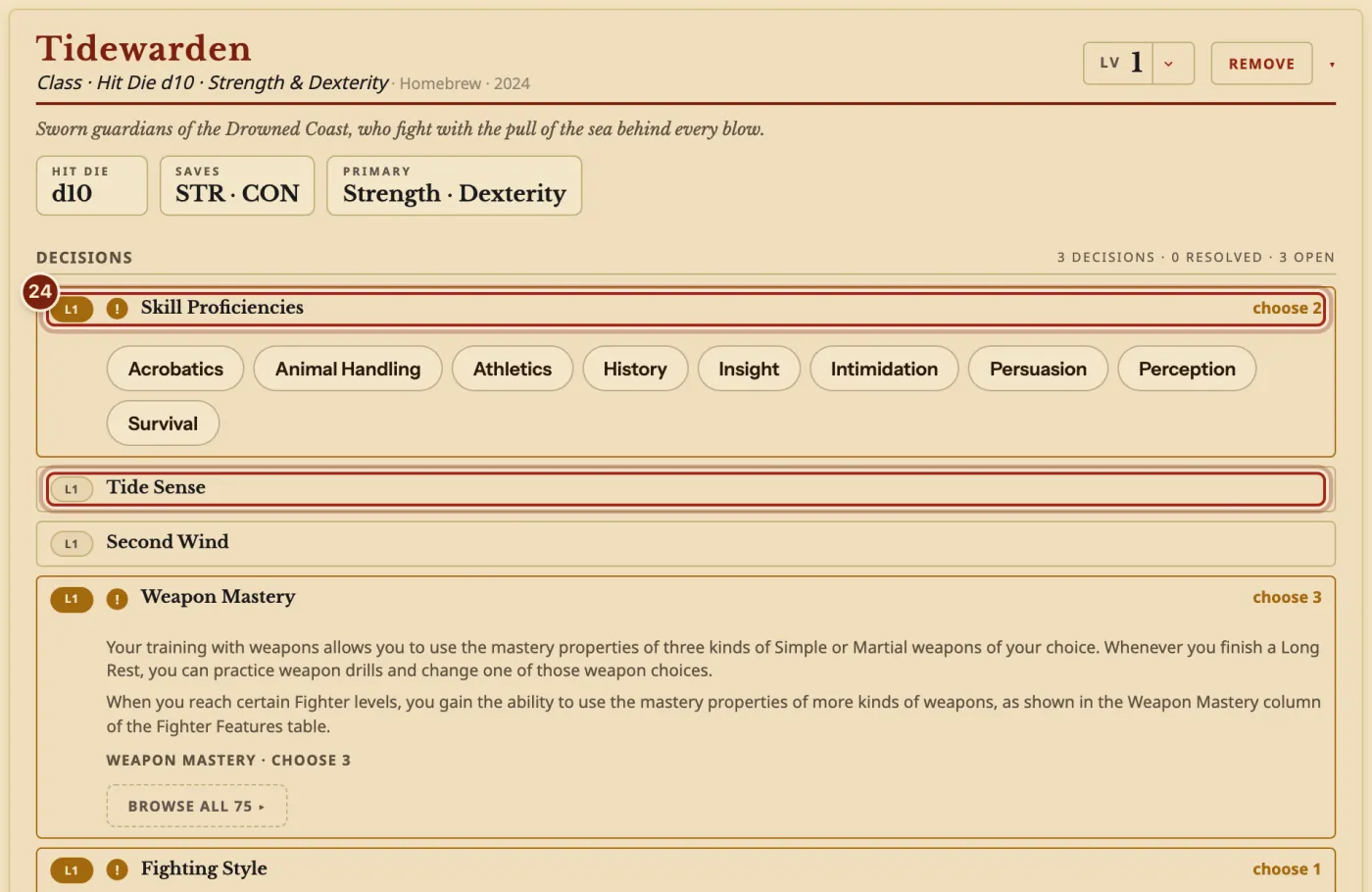
- Make each choice marked with ! on your class's card.
- Go through the other steps on the left: Race / Species, Background, Abilities, Equipment and Hit points. The Builder guide explains each one.
- Press Finish and open sheet.
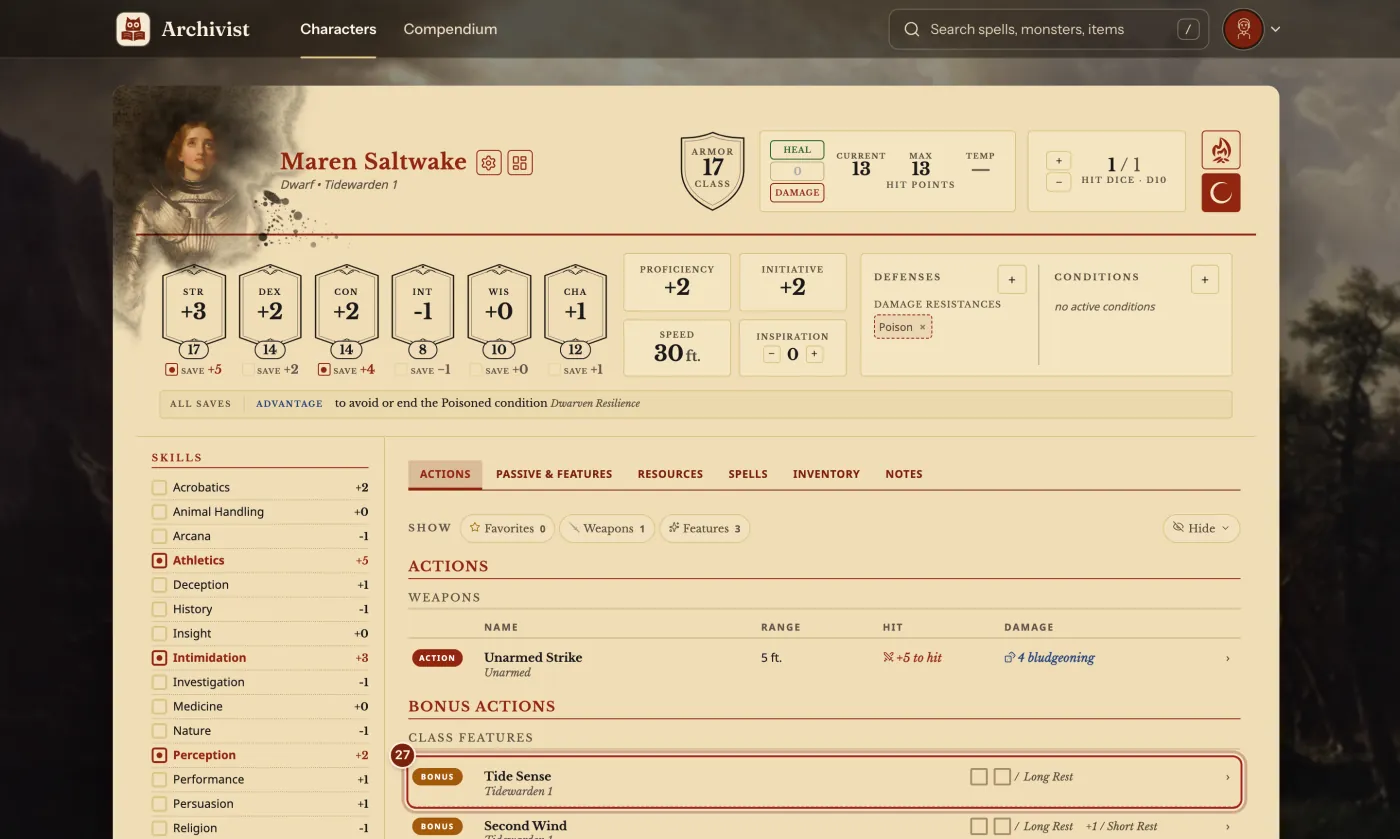
- On the sheet's Actions tab, find your feature. Tick a box each time you use it.
action: bonus-action line.The lines you will change most in a class
Every line below is already in your copy. Change the part after the colon. The Compendium format guide covers every kind of entry.
| Line | What it does | What you can write |
|---|---|---|
name | The class's name on the card, in the Builder and on the sheet. | name: Tidewarden |
hit_die | Sets hit points and Hit Dice. The first level takes the full die, each later level the fixed average. | d6, d8, d10 or d12 |
saving_throws | The two saving throws a character gets from their first class. | Two of str, dex, con, int, wis, cha |
skill_choices | How many skills the Builder asks for, and from which list. | count: 2, then the skills under from: |
spellcasting | Spell slots, spell save DC and spell attack. | caster_type: full, half, third, pact or half-up |
subclass_level | The level where the Builder offers a subclass. | subclass_level: 3 |
features_by_level | What the class gains at each level, shown on the sheet once the character gets there. | id, name and description for each feature |
action | Where a feature sits: Actions, Bonus Actions or Reactions on the Actions tab. Leave it out for the Passive & Features tab. | action, bonus-action or reaction |
resources | Tick boxes for a feature's uses, and when they come back. | max_formula: '2', reset: long-rest, short-rest or dawn |
Questions
Save does nothing. What now?
Save waits until the text can be read, and a line over the Preview says what to fix, such as "Line 12 can't be read. Check its spacing and colons." Put the spaces back at the start of that line. If a sentence has a colon in it, put the whole sentence in double quotes.
What happens to my character when I change the class later?
Your change reaches every character that uses the class. The Edit window says how many that is, beside Save.
How do my players get my class?
Press Manage compendiums, then Export beside your compendium, and send them the zip file. They press Import homebrew, choose Archivist files and drop it in. Share homebrew with your party shows each step.
Does my class have subclasses?
Your copy keeps offering the subclasses of the class you copied. To give it one of its own, follow Make a homebrew subclass.
Will I see my class on my phone?
Yes. Your homebrew stays in sync on every device you sign in on, along with your characters and their portraits.
Keep going
- Make a homebrew subclassDescribe it to the Archivist Inquiry Assistant, or copy a subclass and change it by hand.
- Compendium format guideLet the Archivist Inquiry Assistant write entries, or learn the lines by hand.
- Share homebrew with your partyExport your compendium as a zip; they bring it in with Import homebrew.
- Make a character, step by stepQuick build for one screen, Standard Builder for every choice.
- Level up a characterOpen the Builder from the sheet and raise the class's level.