How to connect Codex to Archivist
The short answerIn a terminal, run codex mcp add archivist --url https://api.archivist.gg/mcp, then codex mcp login archivist: your browser opens Archivist, where you press Allow. In the IDE extension, add it under the gear's MCP servers instead. Then ask Codex about one of your characters.
- For players and DMs
- 12 short steps
- Updated 19 November 2026, for Archivist 1.7.0
Steps from Codex's own docs, read 19 November 2026. The Codex command line and IDE extension work with ChatGPT Plus, Pro, Business, Enterprise and Edu. For Codex in the ChatGPT desktop app, see Connect ChatGPT.
In a terminal
- Open a terminal on your computer.
- Run this command to add Archivist:Command
codex mcp add archivist --url https://api.archivist.gg/mcp
Codex answers in a line that it added archivist.
- Run this command to sign in. Your browser opens Archivist:Command
codex mcp login archivist
On a computer you reach through a remote terminal, add --no-browser and open the address it prints in your own browser.
Or in the IDE extension
- In the Codex extension, press the gear, then MCP servers, then Add server.
- Pick Streamable HTTP, paste the address and save:MCP address
https://api.archivist.gg/mcp - Restart the extension, then press Authenticate beside Archivist. Your browser opens Archivist.
Your browser opens Archivist's allow page.
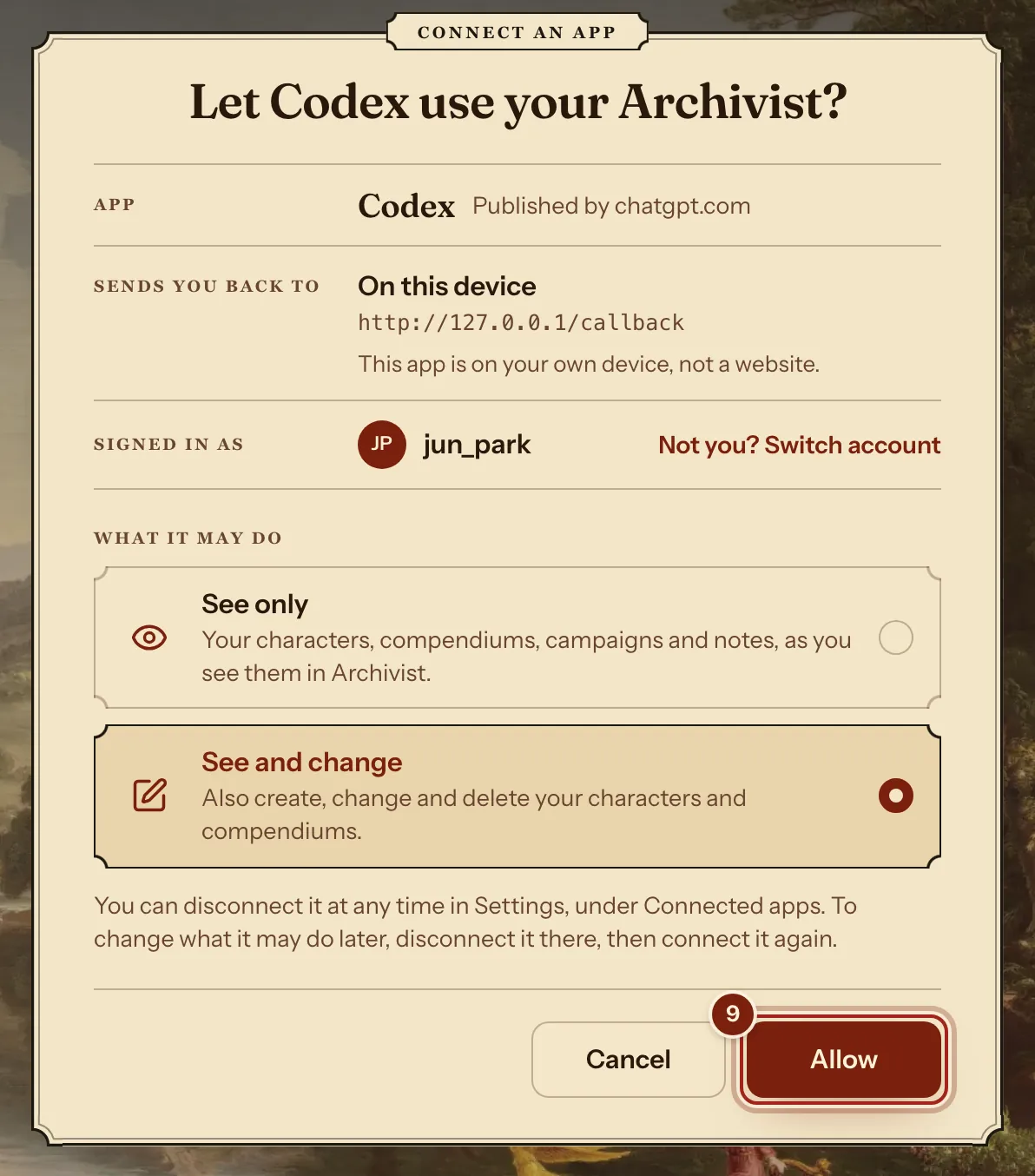
Allow it in Archivist
- Your browser opens Archivist. Sign in if it asks.
- Check the app: Codex, with Published by chatgpt.com next to its name, and Sends you back to: On this device, then an address on your own computer starting with http://localhost or http://127.0.0.1.
- Under What it may do, keep See and change to let it bring things in, or pick See only. Press Allow.
The page says the app is connected and takes you back to it. If you waited too long, it offers Start again. You can disconnect the app at any time in Settings, under Connected apps.
Ask it about your character
- Start Codex and paste this first prompt:Prompt
Use Archivist. Tell me which account you are signed in to and whether you can change things or only see them, then list my characters and my compendiums. - When Codex asks before it uses an Archivist tool, allow it.
It answers with your account's name, what it may do, and your characters and compendiums.
- Ask about one of your characters, such as:Prompt
In Archivist, what is Grendal the Wary's Armor Class, and what gives him that number?
It answers with the number and what gives it, read from Archivist.
Questions
Can Codex read a photo of my sheet?
Yes. Paste it or drag it into Codex, or start Codex with -i and the picture's file. See Bring in a character or homebrew with Codex.
How do I add it to Codex in the ChatGPT desktop app?
Under the desktop app's Settings, MCP servers. See Connect ChatGPT.
How do I stop it?
In Archivist, open Settings and press Disconnect on Codex's row under Connected apps.
Keep going
- Connect your own chat app to ArchivistAdd one address in your chat app, sign in, and it can read and change your characters.
- Bring in a character or homebrew with CodexA sheet from a photo or a PDF, and homebrew from a PDF or pasted text.
- Prompts to copy for your chat appCheck the connection, bring in a sheet, a book or homebrew, and fix notes.
- Connect ChatGPT to ArchivistIn the desktop app's Codex, add it under MCP servers.