How to connect your own chat app to Archivist
The short answerCopy the address under Connected apps in Archivist's Settings, and add it in your chat app where it asks for an MCP server. Sign in to Archivist when it asks, choose See only or See and change, and press Allow. From then on your chat app can read your characters, compendiums and campaigns as you see them, and with See and change it brings in sheets, books and homebrew for you.
- For players and DMs
- 11 short steps
- Updated 20 November 2026, for Archivist 1.7.0
Each chat app has its own guide: Claude, Claude Code, Codex and ChatGPT.
Copy the address
- Sign in to Archivist. Press your portrait at the top right, then Settings.
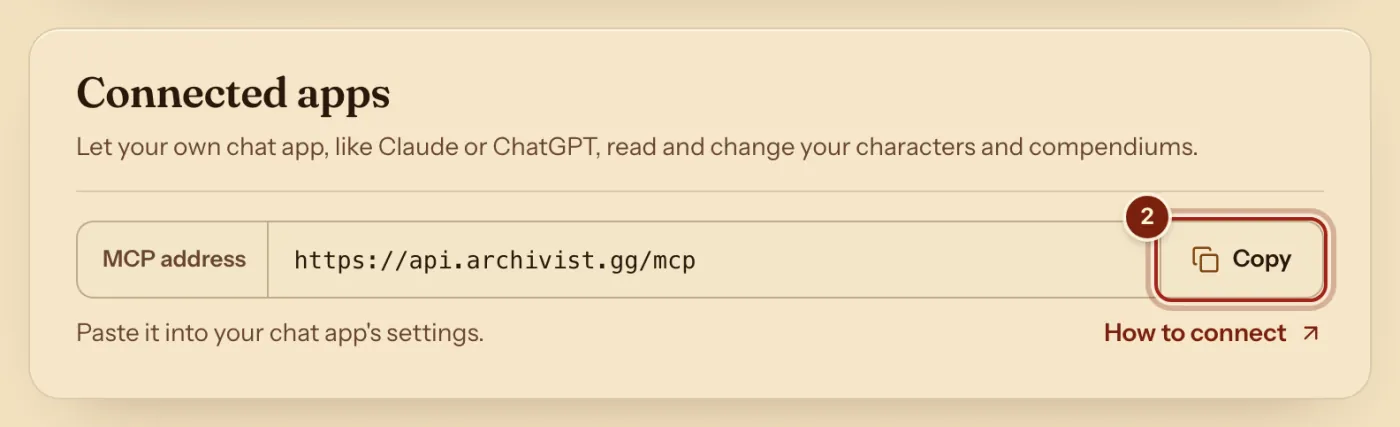
- Under Connected apps, press Copy beside the MCP address.MCP address
https://api.archivist.gg/mcp
Import a sheet on the New character page, and Import homebrew on the Compendium page, show the same address under Your own chat app.
Add it to your chat app and allow it
- In your chat app, add a new MCP server, or a custom connector, with the address. Your chat app's own guide below has the exact steps.
- When your chat app asks you to sign in, your browser opens Archivist. Sign in if it asks.
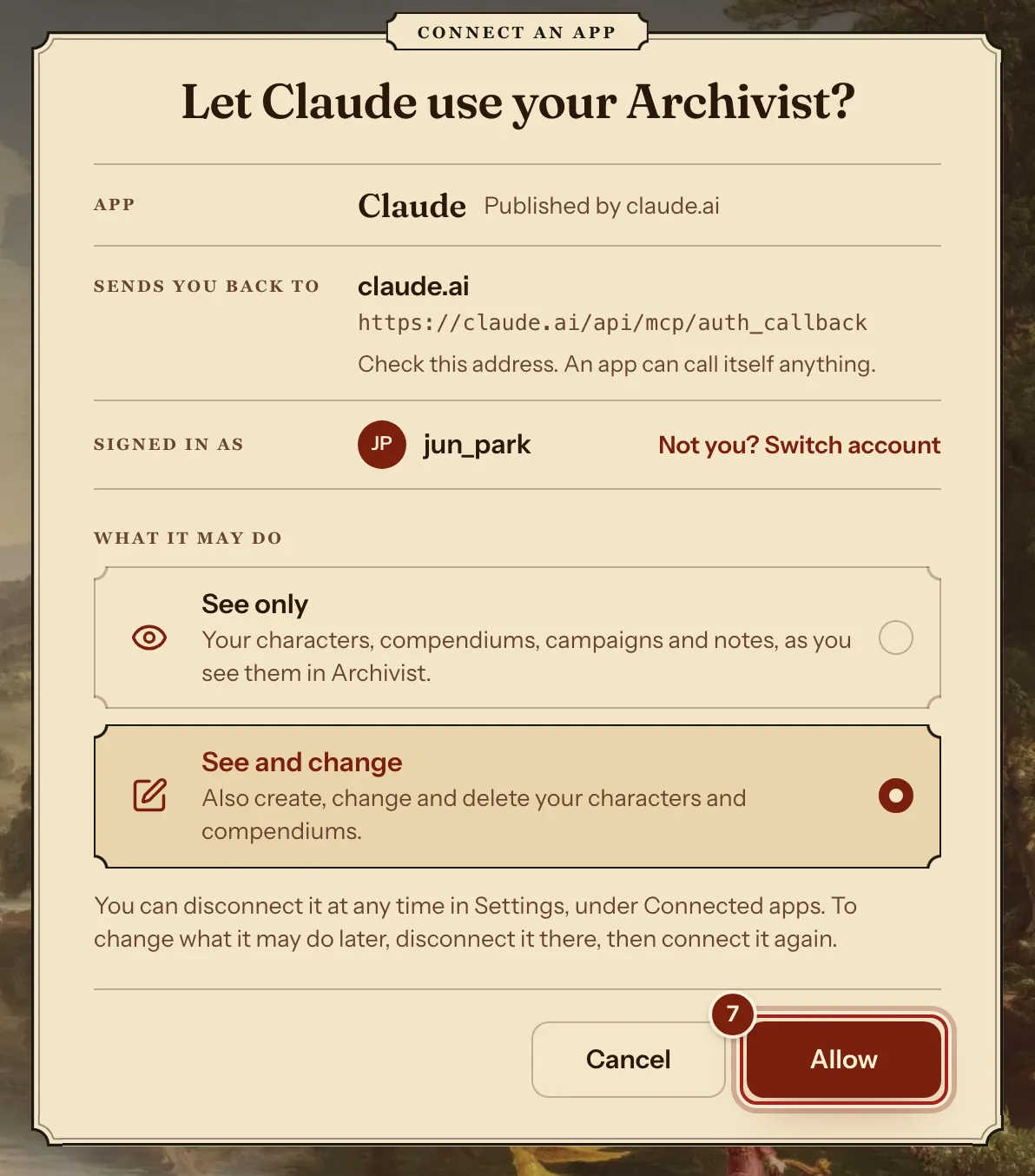
- Check the app. A well-known one reads Published by and its site next to its name, such as claude.ai; one on your own computer, such as Claude Code or Codex, says On this device under Sends you back to. One marked Not verified gave itself its name: allow it only if the address under Sends you back to is the one you expect.
- Under What it may do, keep See and change to let it bring things in, or pick See only.
- Press Allow. The page says the app is connected and takes you back to it.
If you waited too long, the page offers Start again. Press it, or connect again from your chat app.
Ask it something
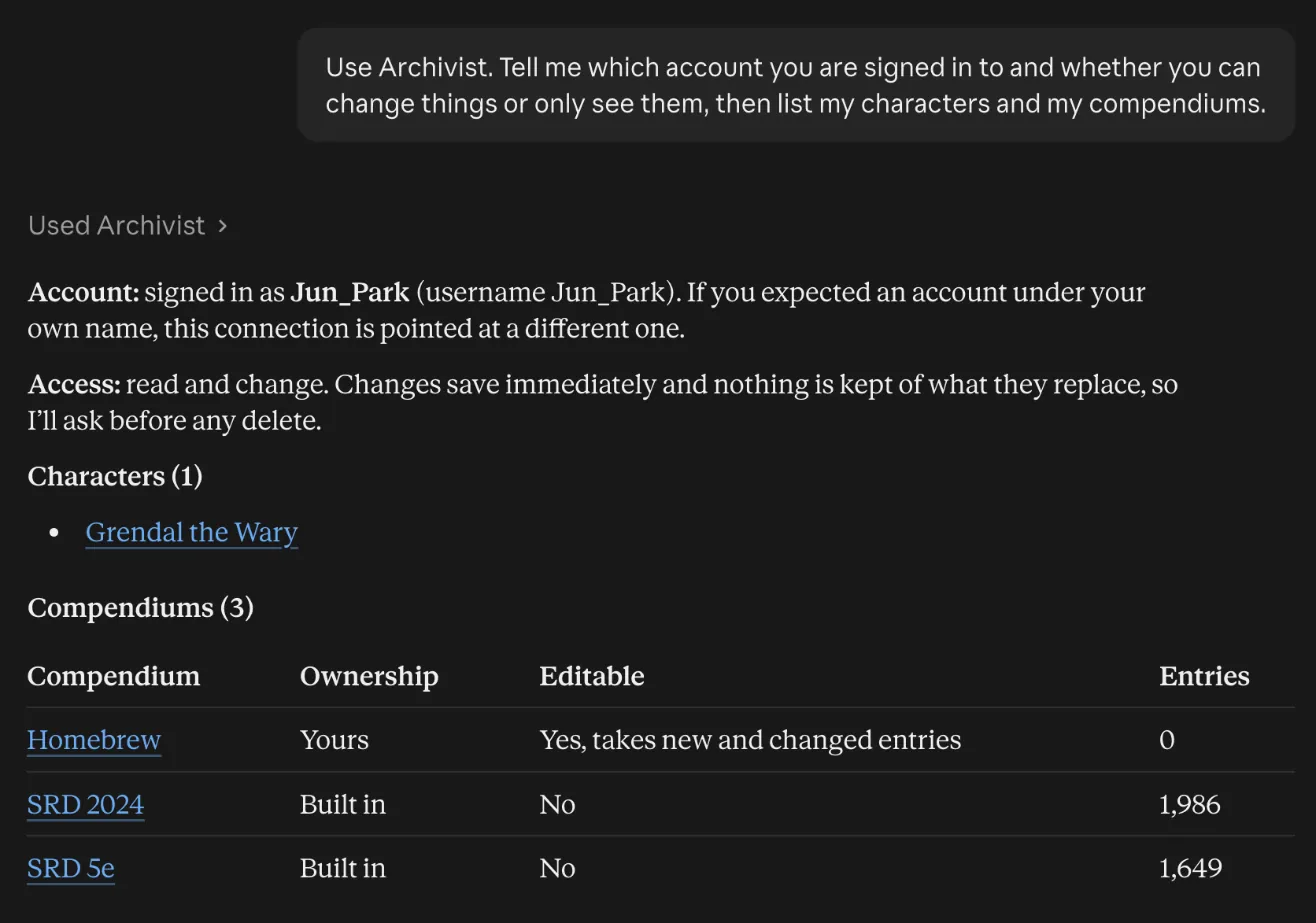
- In your chat app, paste this first prompt:Prompt
Use Archivist. Tell me which account you are signed in to and whether you can change things or only see them, then list my characters and my compendiums. - It answers with your account's name, what it may do, and your characters and compendiums. Then ask it about one of your characters.
Prompts to copy for your chat app has one for each job: a character sheet, monsters and spells from a text, a whole book, a homebrew item, and notes to fix.
Disconnect it
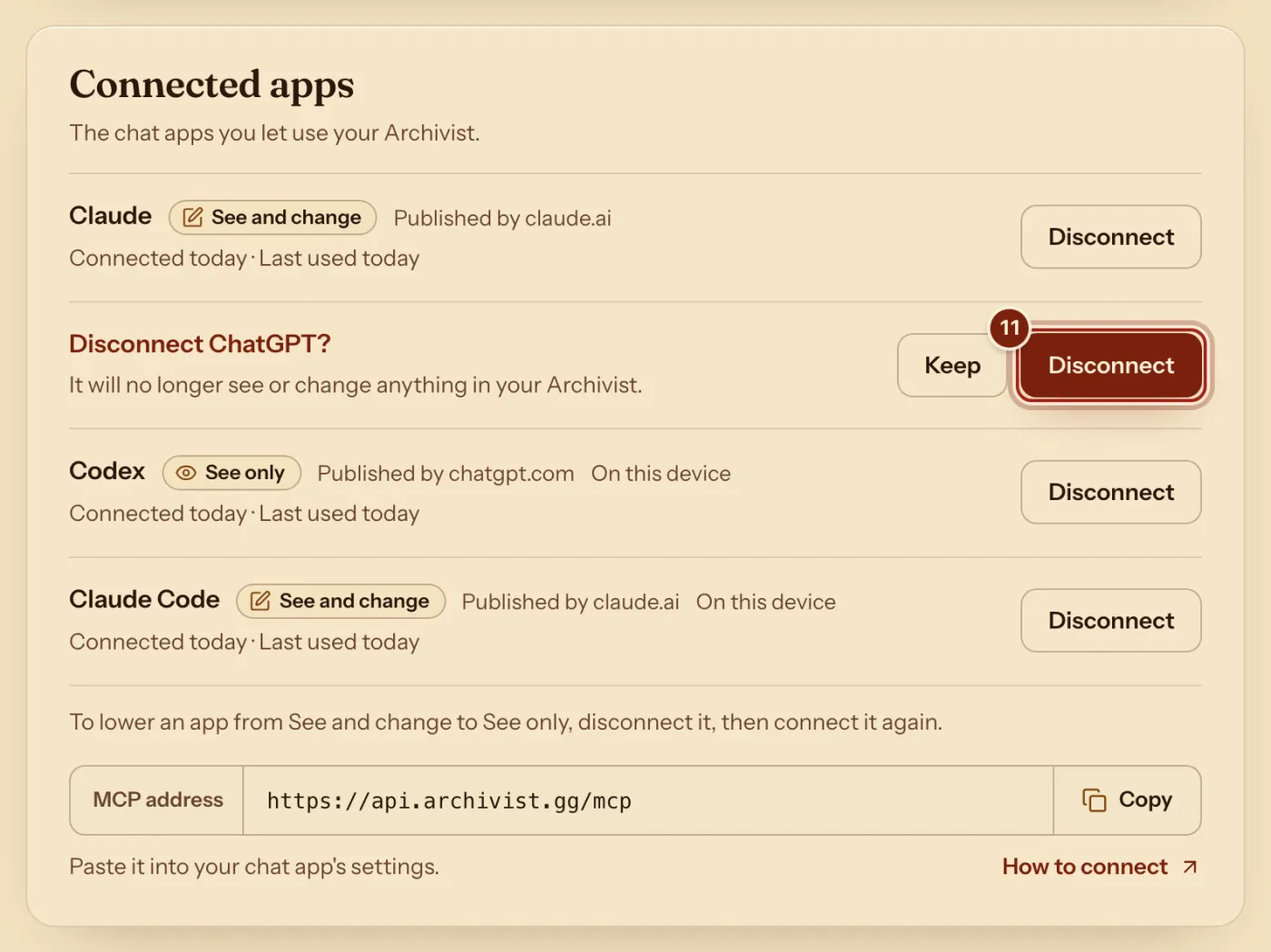
- Open Settings. Each app you allowed has a row under Connected apps: its name, See only or See and change, its mark, when it was connected and when it was last used.
- Press Disconnect on its row. The row asks again: press Disconnect, or Keep to leave it connected.
To lower an app from See and change to See only, disconnect it, then connect it again.
See only and See and change
You pick one on the allow page, for each app you connect.
| Your chat app can | See only | See and change |
|---|---|---|
| See your characters, compendiums, campaigns and notes, as you see them in Archivist | Yes | Yes |
| Make, change and delete your own characters, compendiums and entries | No | Yes |
| Change another player's character, as their DM or as a player | No | No |
Where each chat app takes the address
Each guide goes from opening the app to its first answer about one of your characters.
| Chat app | Where the address goes | Guide |
|---|---|---|
| Claude, on the website or in the desktop app | Customize, Connectors, Add custom connector | Connect Claude |
| Claude Code | The command claude mcp add, in a terminal | Connect Claude Code |
| Codex, in a terminal or the IDE extension | The command codex mcp add, or the extension's MCP servers | Connect Codex |
| The ChatGPT desktop app | Codex, Settings, MCP servers | Connect ChatGPT |
Questions
Which chat apps can I use?
Claude, Claude Code, Codex and ChatGPT each have a guide here. In another chat app, look in its settings for MCP servers or connectors and add the same address.
What can my chat app see?
What you see in Archivist: your own characters, compendiums and notes, and in your campaigns what Archivist shows you as a player or as the DM. It never sees your email address or your password.
Will it change things without asking me?
With See only, it changes nothing. With See and change, it may, depending on your chat app's own approval settings: Claude, for one, can save a change without asking first. Connect Claude says how to have Claude ask before every change. Archivist also tells your chat app to ask you before it deletes anything.
Will Archivist ask me again next time?
No. Once you allowed an app, it is not asked about again. To give it less, disconnect it in Settings, then connect it again and pick See only.
Does signing out disconnect my chat app?
Signing out on one device does not. Resetting your password, changing your email or your password, and signing out everywhere or on every other device disconnect every chat app: connect each one again afterwards.
How do I keep a copy before it changes a character?
Download the character first: see Keep a copy of your character. A change your chat app makes is saved at once, and Archivist keeps no earlier version.
Can each player connect their own?
Yes. Each person connects their own chat app to their own account, and it sees what that person sees.
Does it work on every device?
Yes. What your chat app makes is in your Archivist on every device you sign in on.
Keep going
- Connect Claude to ArchivistAdd it as a custom connector on the website or in the desktop app.
- Connect Claude Code to ArchivistOne command in a terminal, then sign in with /mcp.
- Connect Codex to ArchivistTwo commands in a terminal, or the IDE extension's MCP servers.
- Connect ChatGPT to ArchivistIn the desktop app's Codex, add it under MCP servers.
- Prompts to copy for your chat appCheck the connection, bring in a sheet, a book or homebrew, and fix notes.
- Import a character from a PDF or a photo of your sheetGive your chat app a PDF, photos or the text of any sheet, and it makes the character.