How to bring in homebrew from a PDF, a web page or pasted text
The short answerOn the Compendium page, press Import homebrew and pick A PDF or pictures, A web page or Pasted text. Archivist shows each entry as it finds it. You tick the entries you want in Review before adding, then press Create compendium, and your sheets can use them.
- For players and DMs
- 10 short steps
- Updated 7 November 2026, for Archivist 1.4.0
Try it with our free sample homebrew. Only bring in content you own or have the right to use.
Point it at your homebrew
- In the top bar, press Compendium.
- Press Import homebrew.

- Pick a way in: A PDF or pictures, A web page or Pasted text.
- Drop your file, paste the link or paste your text.
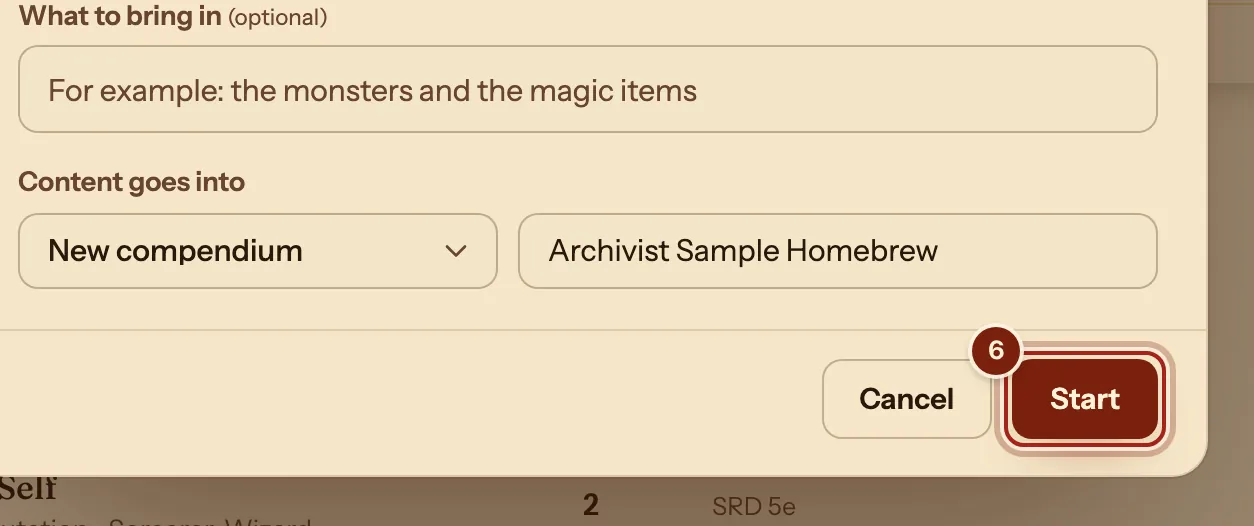
- To bring in only part of it, write that under What to bring in, such as: the monsters and the magic items. Check the name under Content goes into.
- Press Start.
Review before anything is added
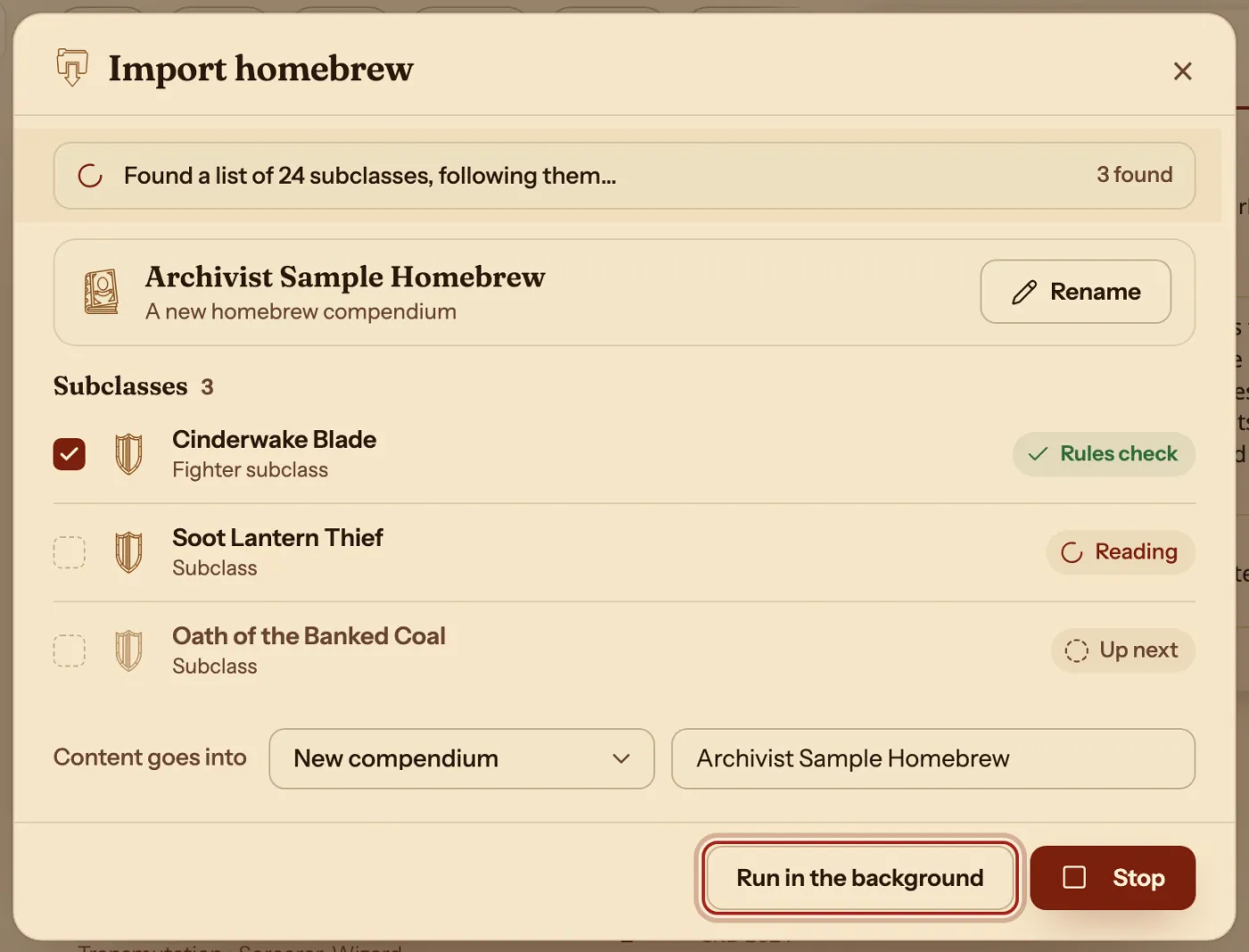
- Watch the entries arrive, or press Run in the background and carry on. The top bar tells you when it is ready.
- If it asks a question, pick an answer and press Continue.
A whole book works too: for a long PDF, Archivist asks what you want from it, such as just the classes or some pages, or press The whole book. See Bring a whole homebrew book into Archivist.
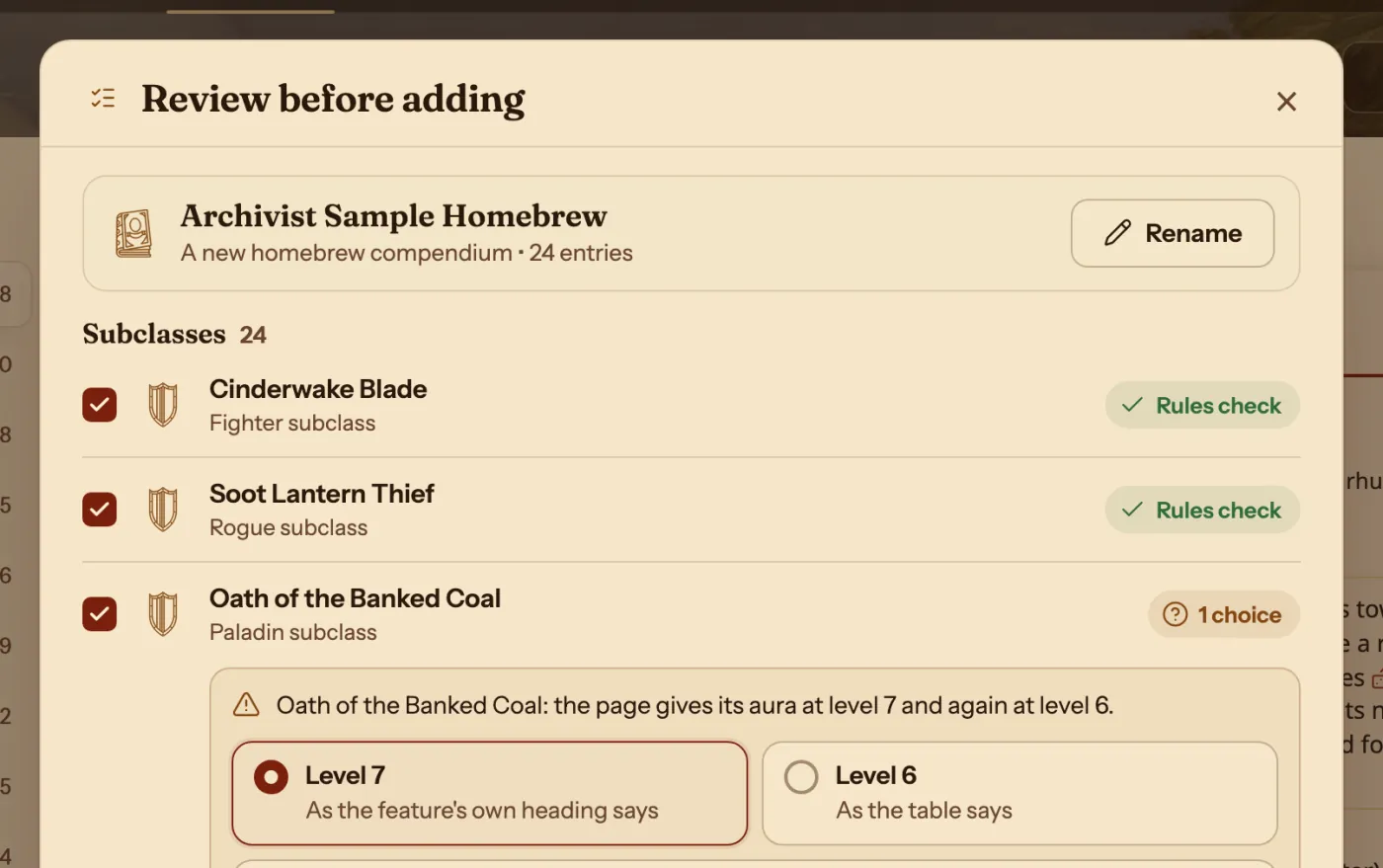
- In Review before adding, untick anything you do not want, and answer any choice it marks.
- Press Create compendium. Your entries are in the list on the left, and your Builder and sheets can use them.
Which way in
All of these end in the same review.
| Way in | Use it for | What you give it |
|---|---|---|
| A PDF or pictures | A homebrew book, or photos of its pages. | One PDF, or pictures of its pages. |
| A web page | A homebrew page, and the pages it links to. | A link that starts with http or https. |
| Pasted text | Anything you can copy. | The text itself. |
| Archivist files | A compendium someone shared. | A zip file. See Share homebrew. |
Questions
Does anything change before I agree?
No. Nothing joins your compendium until you press Create compendium.
A web page will not come in. What now?
Copy the page's text and use Pasted text instead.
Can I bring in a whole book?
Yes. Drop the whole PDF in: a long book asks what you want from it, and you can add the entries that are ready while the rest are still being built. See Bring a whole homebrew book into Archivist.
The homebrew changed. Do I start again?
No. Import the new compendium file and Archivist shows what is new, changed and unchanged. See Update your homebrew.
Can I fix an entry afterwards?
Yes. Your own entries have a ⋯ button with Edit. The Compendium format guide explains the lines.
Keep going
- Bring a whole homebrew book or supplement into ArchivistDrop the PDF in, say what you want from it, and review what comes in.
- Update your homebrew when it changesImport the new file: it shows what is new, changed and unchanged.
- Share homebrew with your partyExport your compendium as a zip; they bring it in with Import homebrew.