How to share maps and handouts players can zoom, pan and download
The short answerOn your campaign's Notes tab, press New, then Handout, and attach the map or PDF under Attach a PDF or a picture. Press Seen by and choose All players or some of them: they get a notice, open it, and can zoom, pan, see the whole page and download it.
- For DMs
- 10 short steps
- Updated 7 November 2026, for Archivist 1.4.0
The examples are a dungeon map and the big map of the Wynor Empire, shared with the whole party.
Make the handout
- Open your campaign and press the Notes tab.
- Press New, then Handout.
- Type a title, and a line about it if you like.
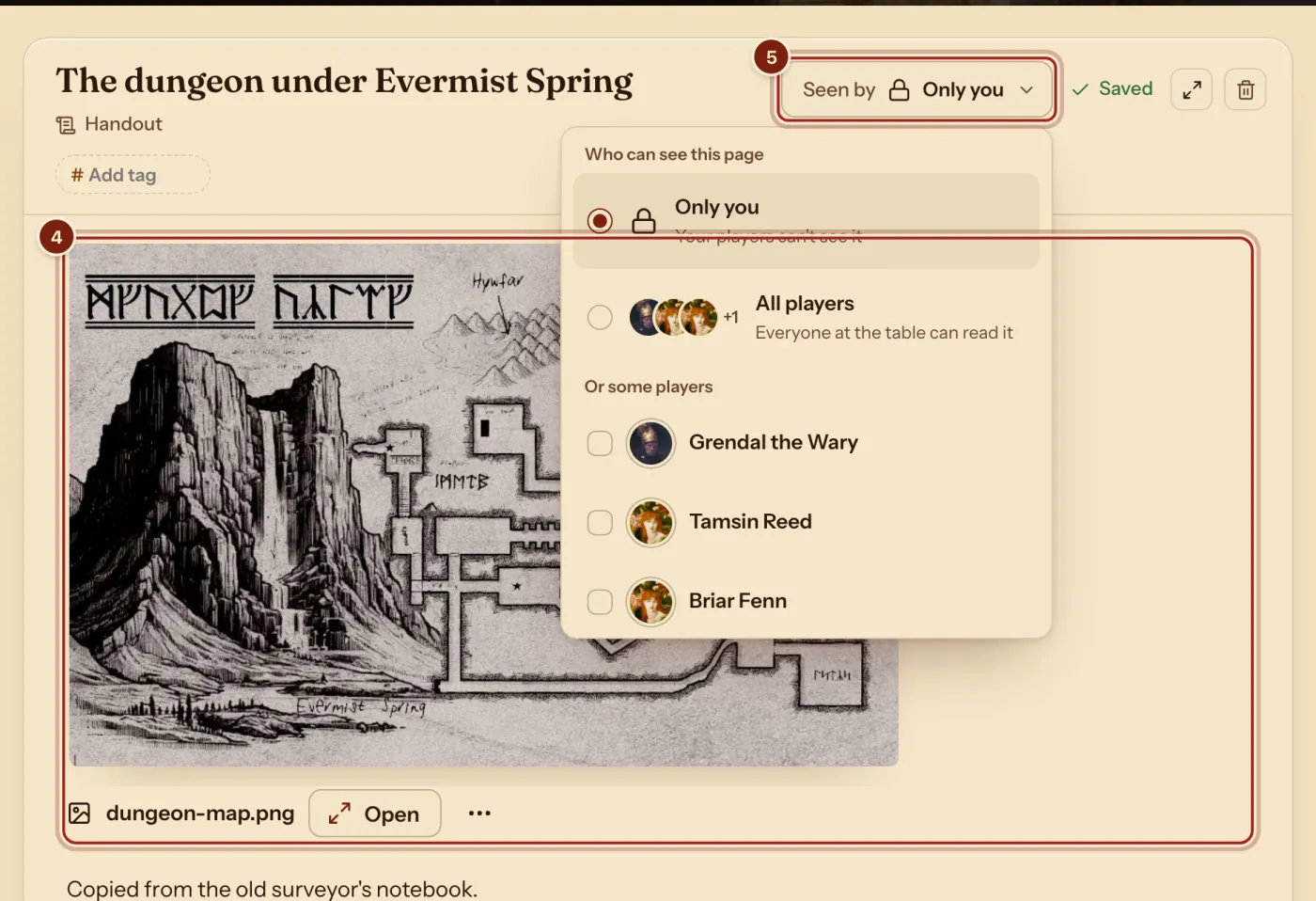
- Under Attach a PDF or a picture, press Choose and pick the file: a PDF, or a JPEG, PNG or WebP picture.
- Press Seen by and choose All players, or tick the players who should see it.
Every handout starts as Only you. Set it back to Only you to take it away again. A big map works well: players zoom in for the detail.
What your players see
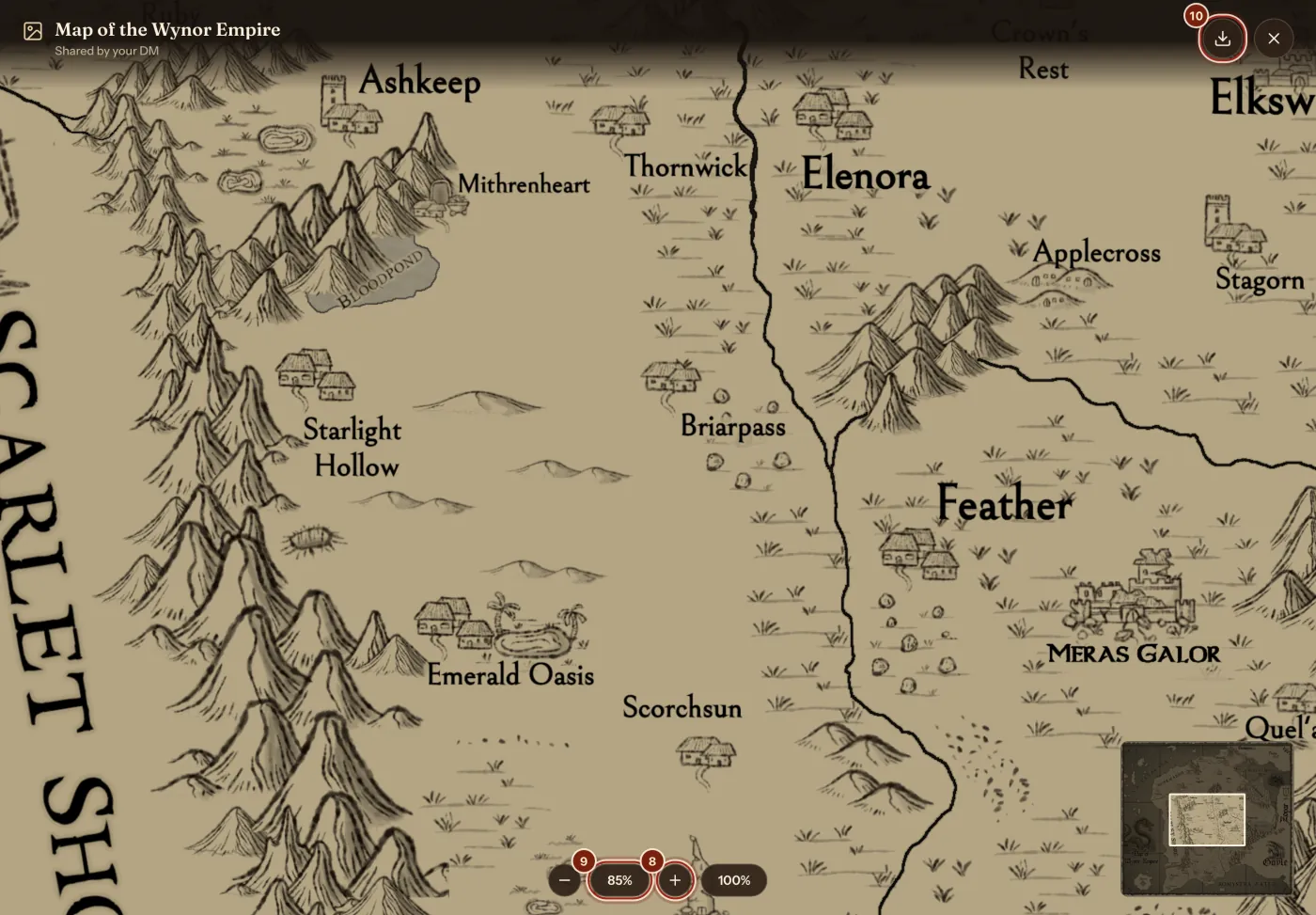
- Each player gets a notice, DM shared a handout, with Read. It also waits under Handouts on their character's Notes tab, marked New.
- They press it, then Open, and the handout fills the screen.
- Zoom in and Zoom out go closer or further; drag to pan. A small view in the corner shows where they are.
- Fit the page to the screen shows the whole page; 100% shows its real size.
- Download saves the file to their device.
A PDF with several pages gets Previous page and Next page, and Show the pages from three pages on. On a phone, swipe for the next page and pinch to zoom.
What a handout can hold
A handout can be words alone, or carry one file.
| File | Players get |
|---|---|
| A map or picture (JPEG, PNG or WebP) | Zoom, pan, the whole page and download. |
| A PDF, such as a letter or a player's guide | Every page, page by page, with zoom and download of the whole PDF. |
| Words only | A page they read on the campaign's Notes tab. |
Questions
Can I show a map to only one player?
Yes. In Seen by, tick only that player.
How big can the file be?
The attach box shows the size it takes, beside Choose.
Can I put a handout on my campaign page?
Yes. Add a Note block with Arrange: it shows the handout's picture. See Use the DM's dashboard.
Can I replace the map later?
Yes. Open the file's More menu and choose Replace.
Keep going
- Keep campaign notes and share handoutsPages on the Notes tab, and handouts with a PDF or a picture.
- Campaign notes for DMsPages and handouts with links, stat blocks and pictures, private until shared.
- Use the DM's dashboard: the Party view and your own layoutThe Party tab shows everyone; Arrange moves and sizes the blocks.