How to find spells, monsters and items in the Compendium
The short answerPress Compendium in the top bar and type in the search box: one search finds spells, monsters, items and every other kind, best match first. Press Any kind at the start of the search bar to pick one kind, and its filters appear above the list, such as Level and School for spells or CR and Type for monsters. Press a row to read the entry. The Compendiums list on the left shows one compendium at a time and holds each one's menu.
- For players and DMs
- 10 short steps
- Updated 18 November 2026, for Archivist 1.6.2
This page's examples are the SRD's spells and monsters.
Search everything at once
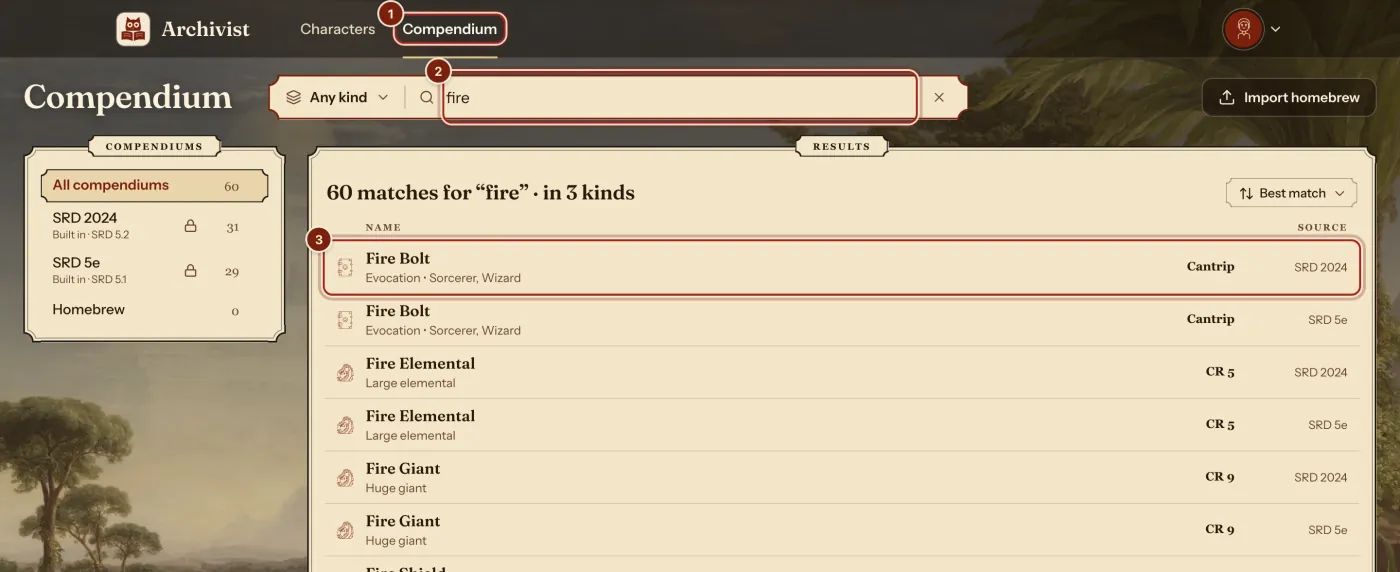
- In the top bar, press Compendium.
- Type in the search box, such as fire. Spells, monsters, items and the rest come up in one list, best match first, each row marked with its kind.
- Press a row to read the entry beside the list. On a phone, it fills the screen, and Back returns to the list.
A typo still finds the closest names. Press / on a keyboard to jump to the search box.
Narrow it to one kind
- At the start of the search bar, press Any kind, then a kind, such as Spells.
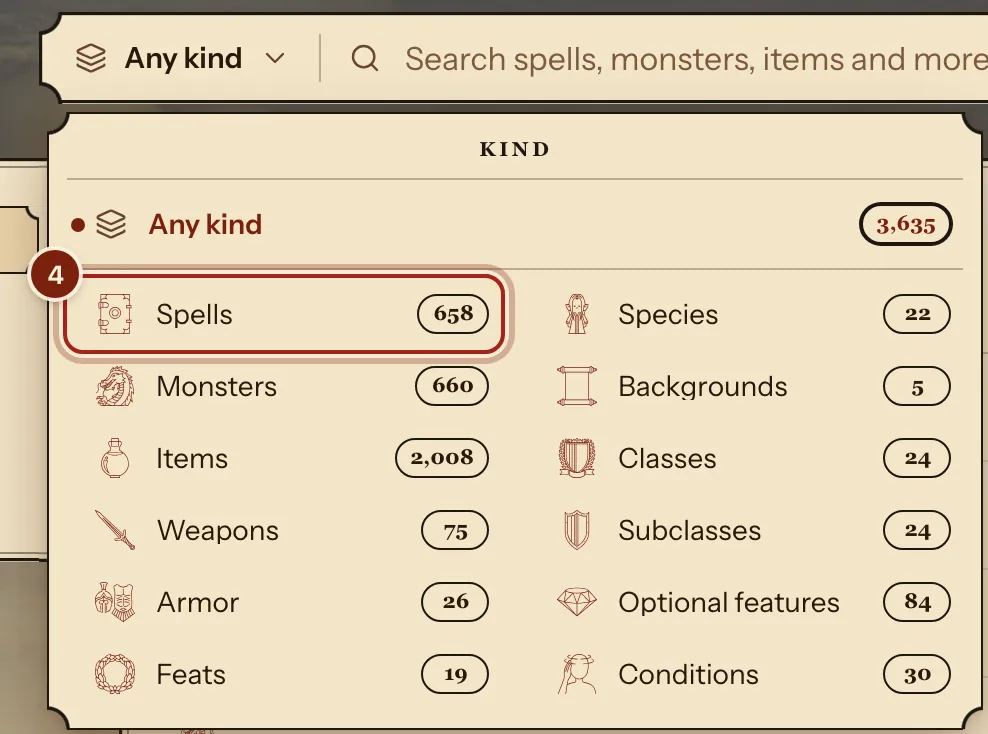
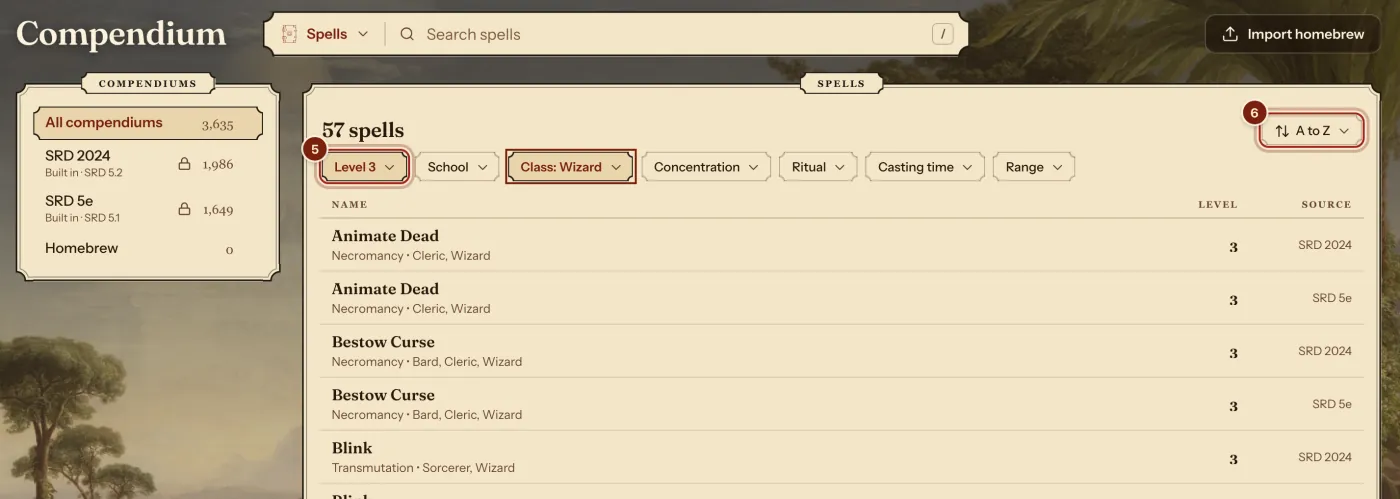
- Press a filter above the list, such as Level or Class, and pick what you want. A number filter takes one value, or two for a range.
- Press Sort: A to Z to sort another way, such as Lowest level first.
Read and use an entry
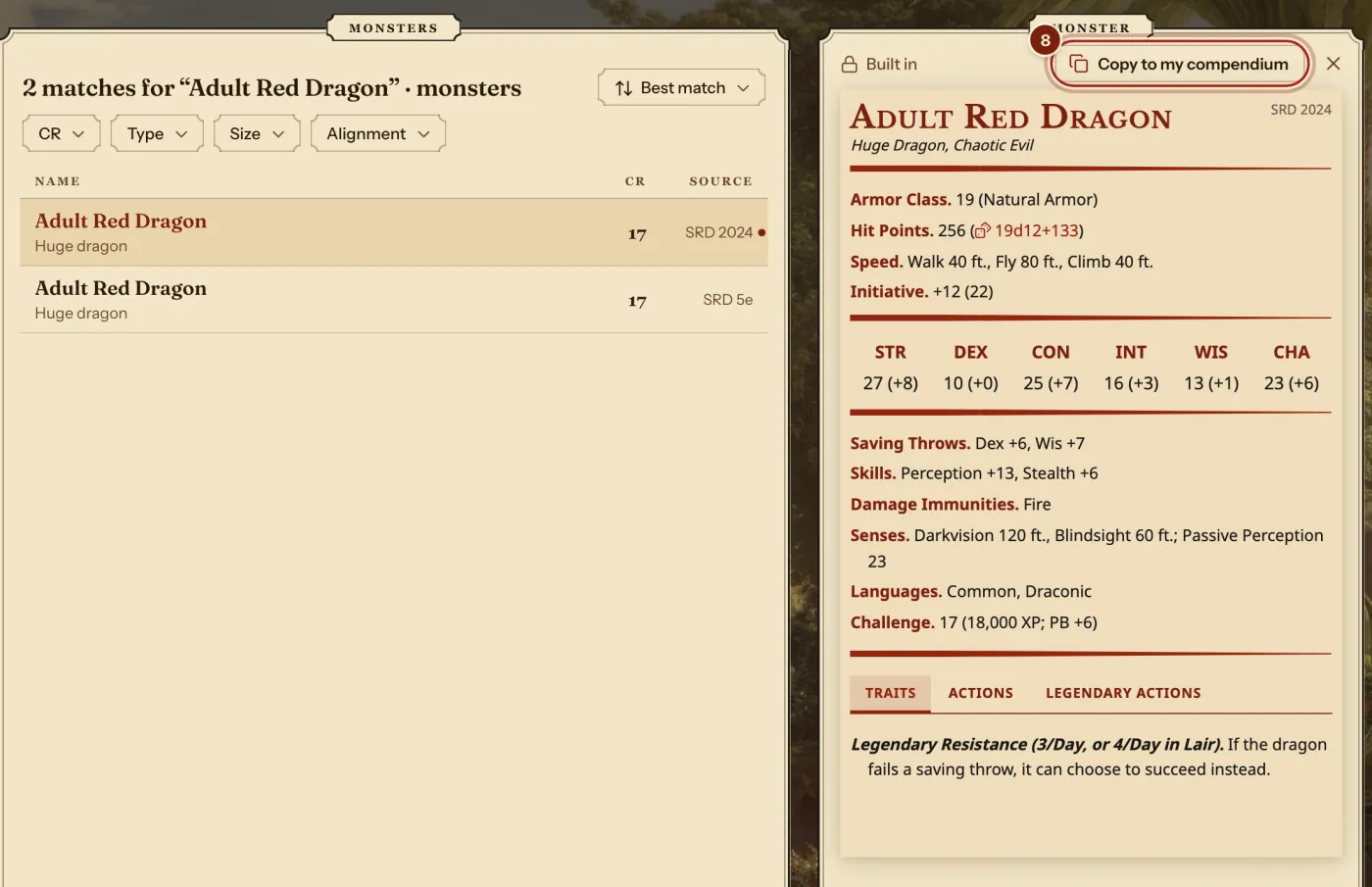
- Press a row. The entry opens in its frame with its full text. Press its dice, such as a monster's attack or a spell's damage, to roll them.
- To make your own version, press Copy to my compendium at the top of its card. Make a homebrew spell and the other homebrew guides go on from there.
Keep your compendiums in order
- In the Compendiums list on the left, press a compendium to see only its entries, such as Homebrew. Press it again to see them all. On a phone or a tablet, press Compendiums first.
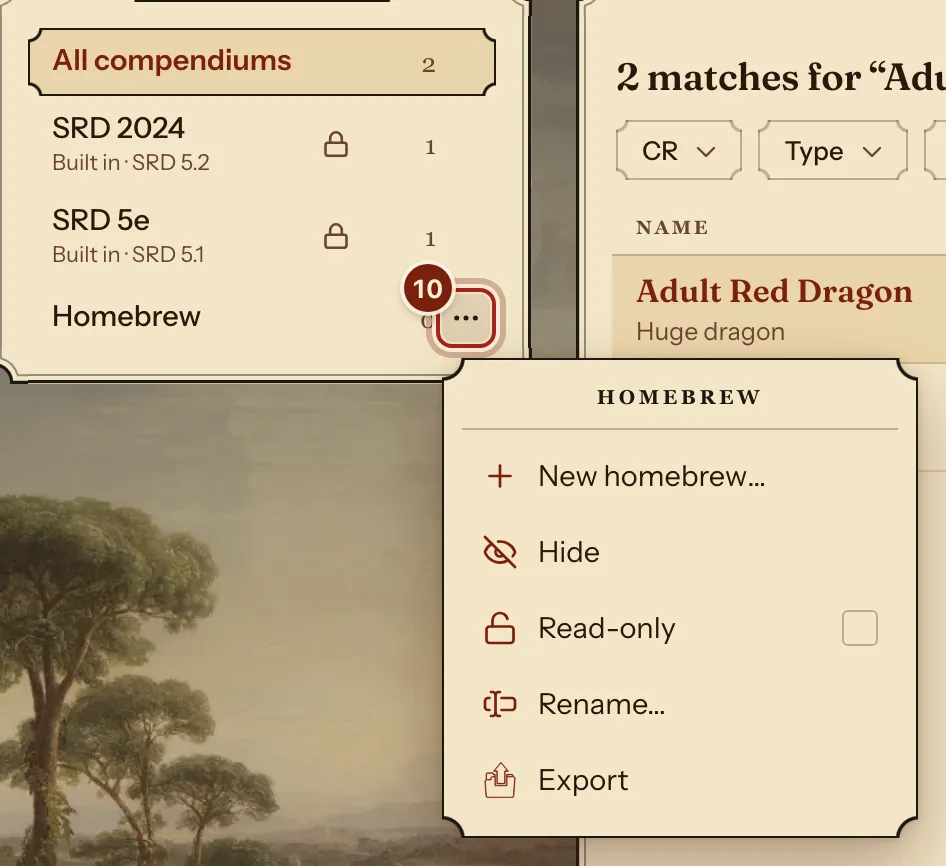
- Press the ⋯ beside a compendium. On a computer it shows when you point at the row. Your own have New homebrew…, Hide, Read-only, Rename… and Export; the built-in rules have Hide and Shown as….
A hidden compendium stays out of every other list and picker, and links to its entries still open. Make homebrew from scratch shows New homebrew…, and Share homebrew with your party shows Export.
The filters for each kind
Pick a kind with Any kind and its filters appear above the list.
| Kind | Filters |
|---|---|
| Spells | Level, School, Class, Concentration, Ritual, Casting time, Range |
| Monsters | CR, Type, Size, Alignment |
| Items | Rarity, Type, Attunement |
| Weapons | Category, Property, Damage type |
| Armor and Feats | Category |
| Backgrounds | Skills |
| Subclasses | Class |
| Optional features | Type |
Questions
Why are there two rows with the same name?
One comes from each set of rules: the end of the row says SRD 2024 or SRD 5e. A copy of your own says Homebrew. See Play the 2024 rules, the 2014 rules, or both.
Can I add my own entries?
Yes. Write one in the homebrew editor, copy an entry and change it, or have your own chat app bring in a whole book. See Make a homebrew spell and Bring in homebrew.
Can I hide one edition of the rules?
Yes. Press ⋯ beside SRD 5e or SRD 2024 and choose Hide.
Does it work on my phone?
Yes. The search sits on its own row, each entry opens full screen, and Compendiums opens your list of compendiums.
Keep going
- Make a homebrew spellWrite it in the homebrew editor, then prepare it and cast it from the sheet.
- Bring in homebrew from a PDF, a web page or pasted textGive your chat app the PDF, the page or the text, and it makes the entries.
- Play the 2024 rules, the 2014 rules, or bothBoth are built in; your first class decides the edition.
- Share homebrew with your partyExport your compendium as a zip; they bring it in with Import homebrew.