How to make homebrew from scratch in the homebrew editor
The short answerOn the Compendium page, press ⋯ beside Homebrew, then New homebrew…, and pick its kind. The homebrew editor opens full screen with a short starter text. It offers the lines that kind can have as you type, explains the line you are on, marks any line that needs fixing, and draws the entry in its Preview. Press Create and it is in your Compendium.
- For players and DMs
- 13 short steps
- Updated 18 November 2026, for Archivist 1.7.0
This page's example is Emberlash, a 2nd-level spell written from nothing.
Start a new entry
- In the top bar, press Compendium.
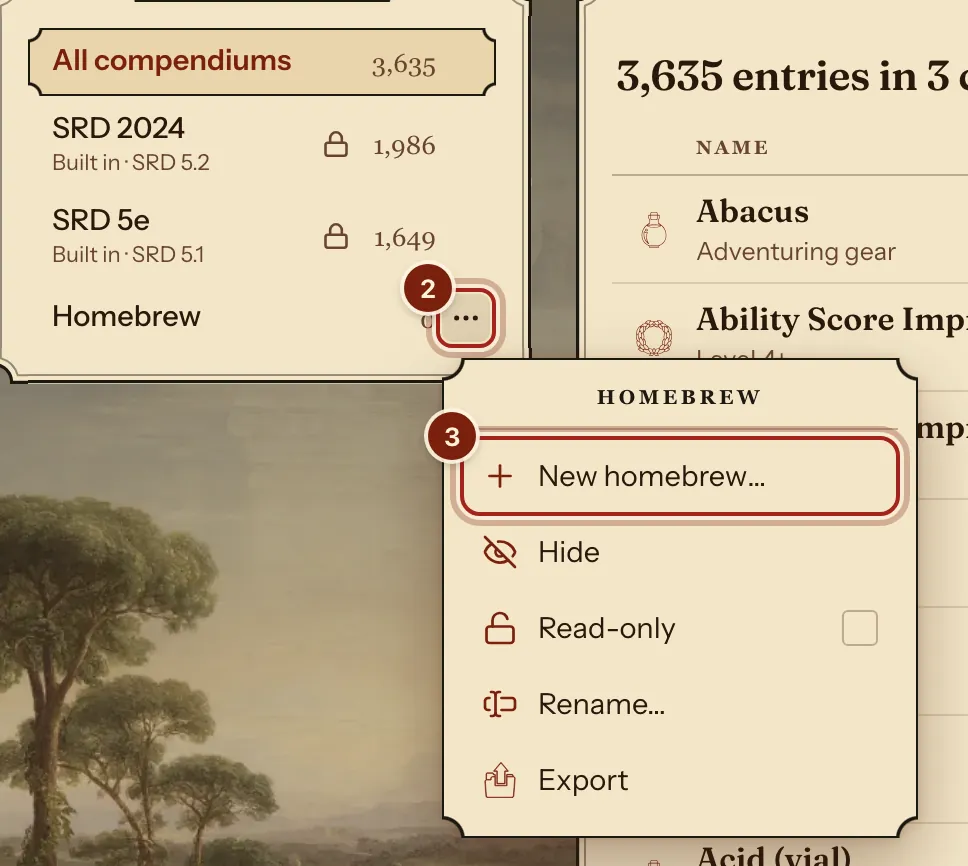
- In the Compendiums list on the left, press the ⋯ beside Homebrew. On a computer it shows when you point at the row; on a phone or a tablet, press Compendiums first.
- Press New homebrew….
Any compendium of your own that is shown and not read-only has New homebrew… in its menu.
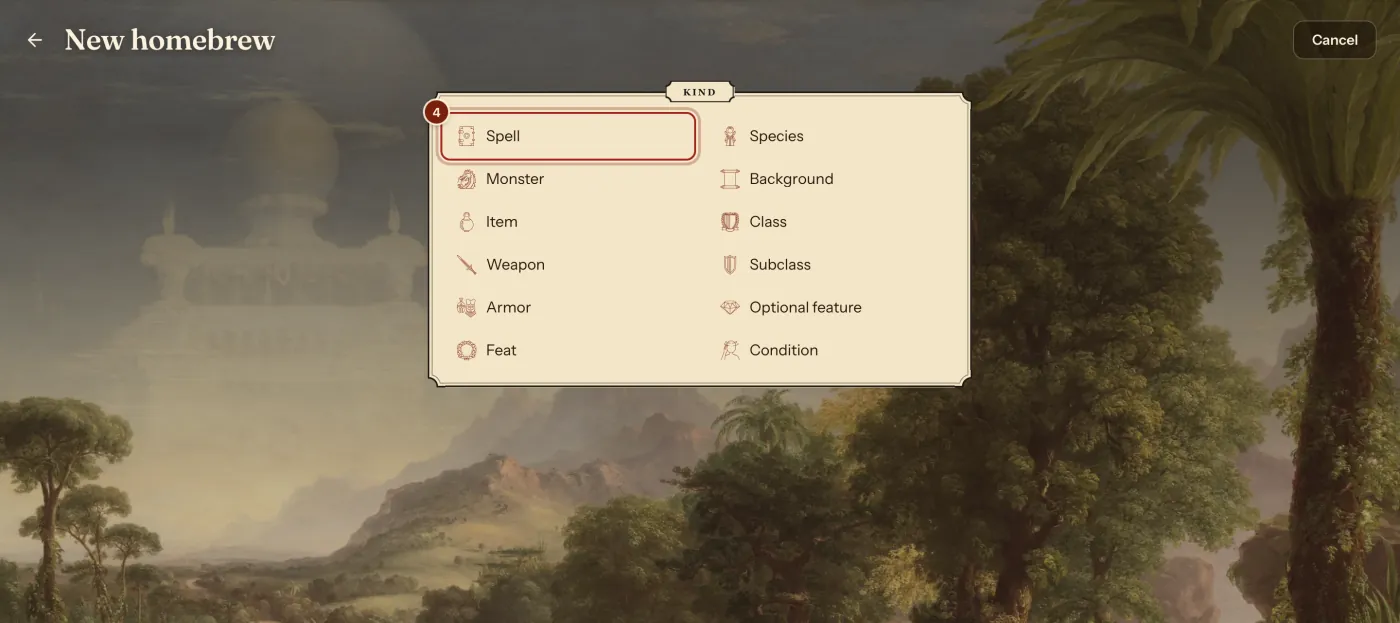
- Under Kind, press what you are making. Here it is Spell.
Write it, line by line
- The editor opens on a short starter text in the Text frame. Change
name: New spellto your entry's name. - To add a line, start typing its label at the start of a line. The editor offers the lines this kind can have, each with a few words on what it does: press one, or use the arrow keys and Enter.
Ctrl+Space (Cmd+Space on a Mac) opens the offered lines by hand. After a colon, it offers the values the line takes.
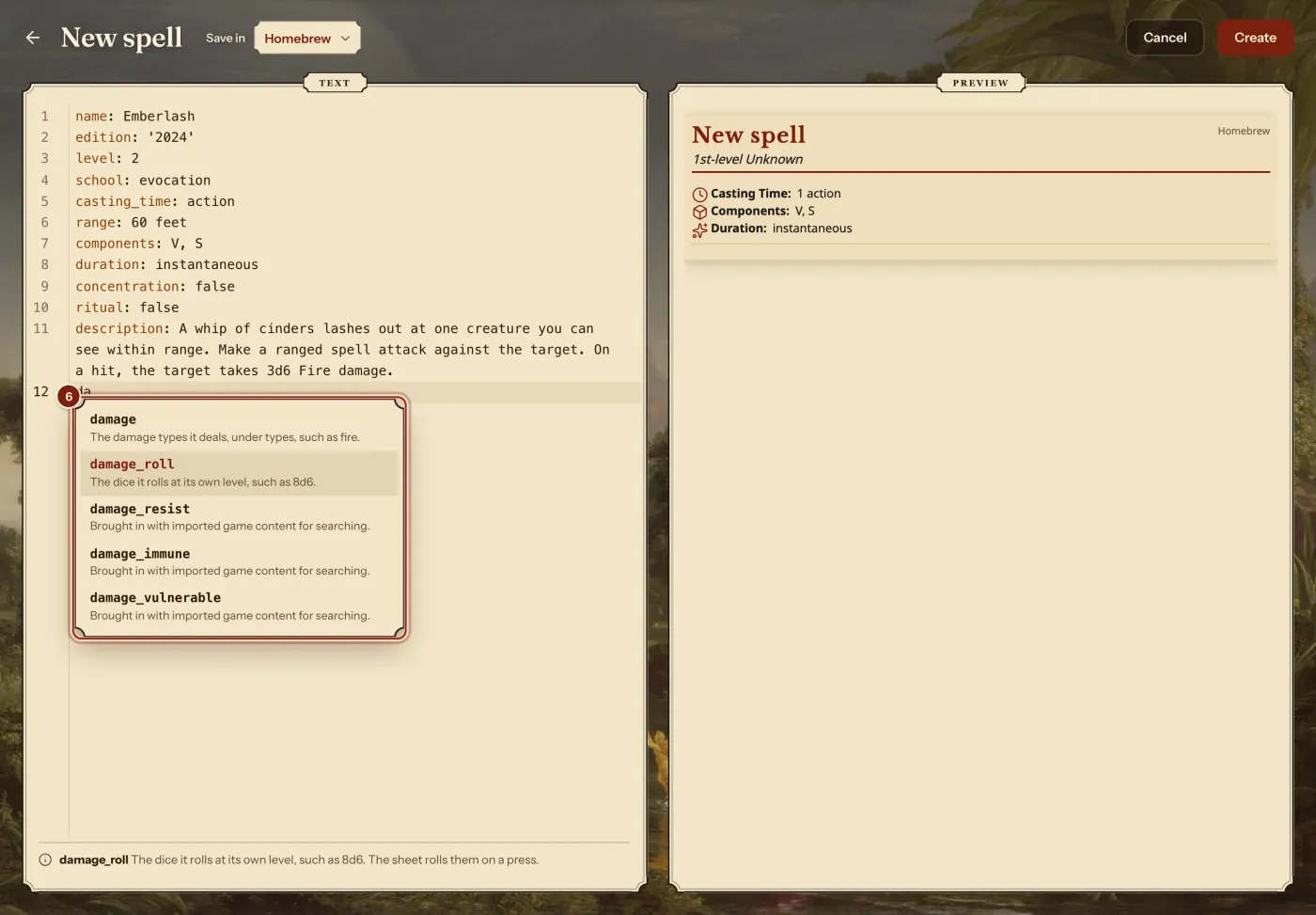
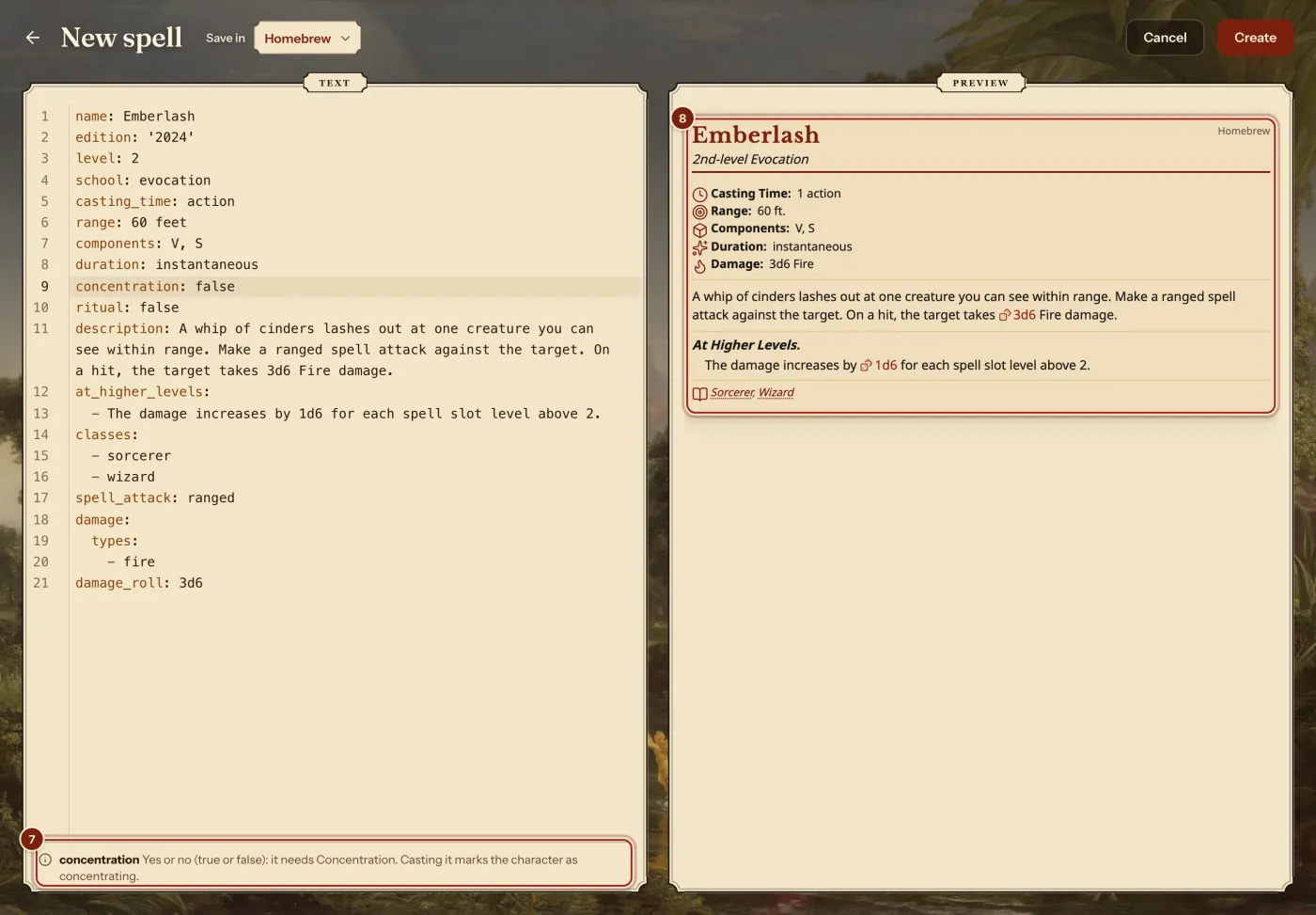
- Read the line at the bottom of the Text frame: it says what the line you are on does.
- Watch the Preview frame on the right draw your entry as you type. On a phone, Text and Preview are two tabs.
Fix what it marks, then create
- A line that needs fixing is marked where it is: a mark in the margin, the line tinted, and the words under it saying what it takes, such as level takes a number. 0 for a cantrip, or 1 to 9. Fix it, and the mark goes.
While a line needs fixing, the Preview keeps its last good drawing.
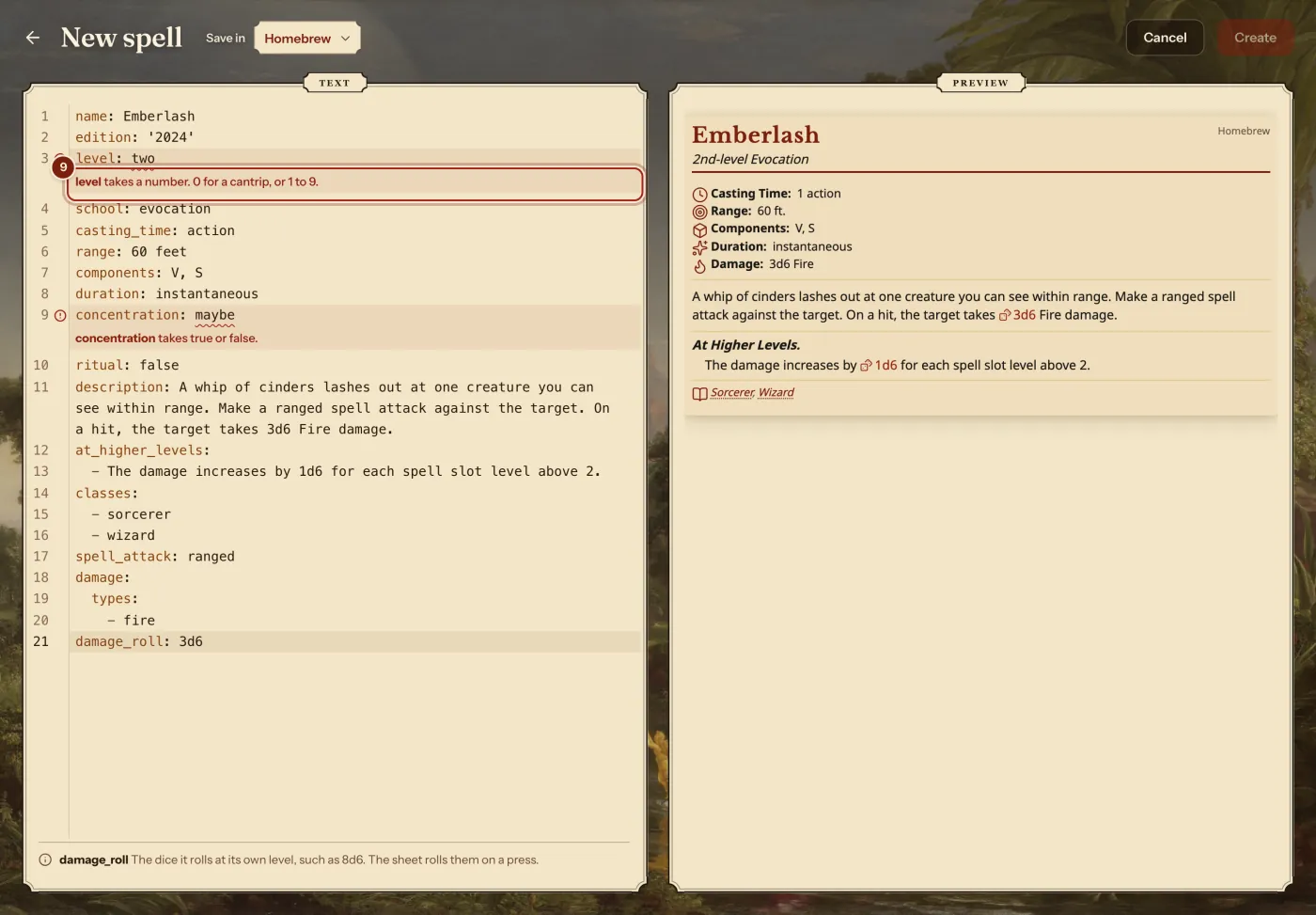
- Beside Save in at the top, keep Homebrew, or pick another compendium of your own.
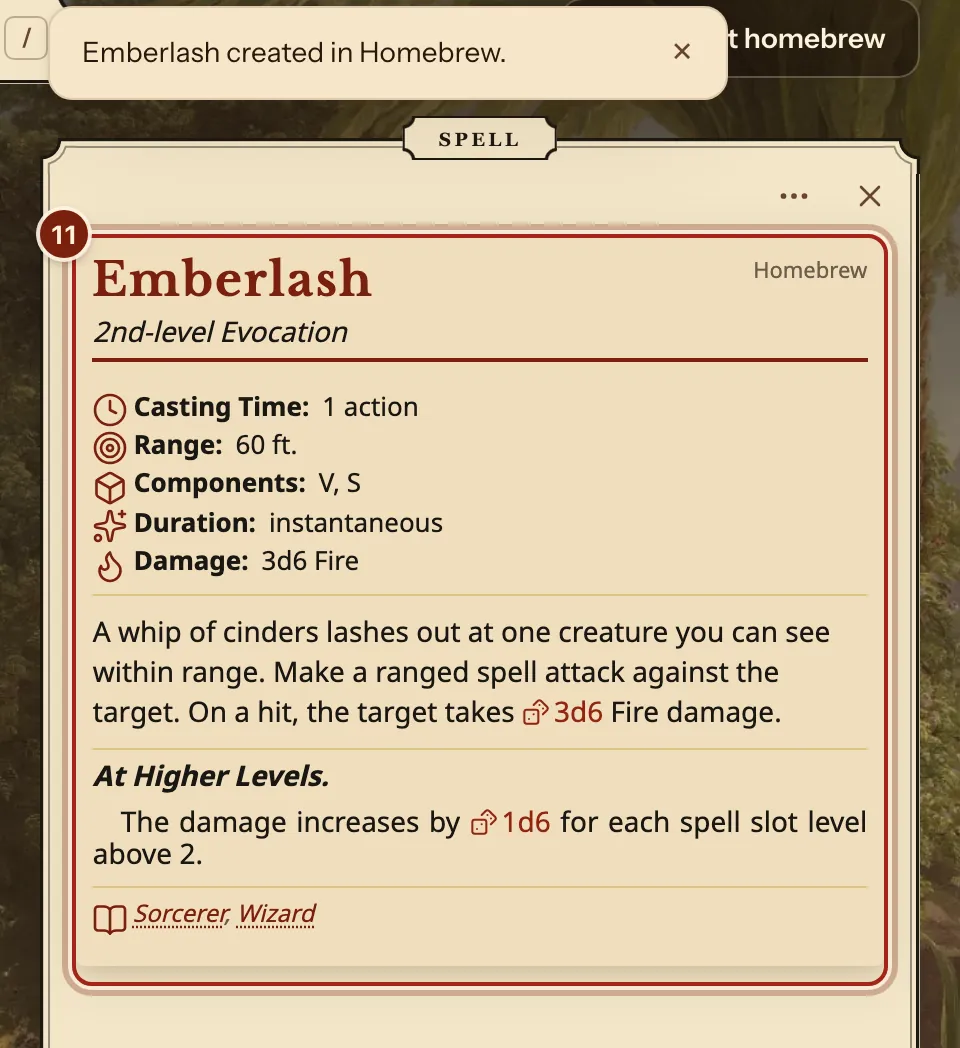
- Press Create. Your entry opens in the Compendium, and a note says where it was created.
Change it later
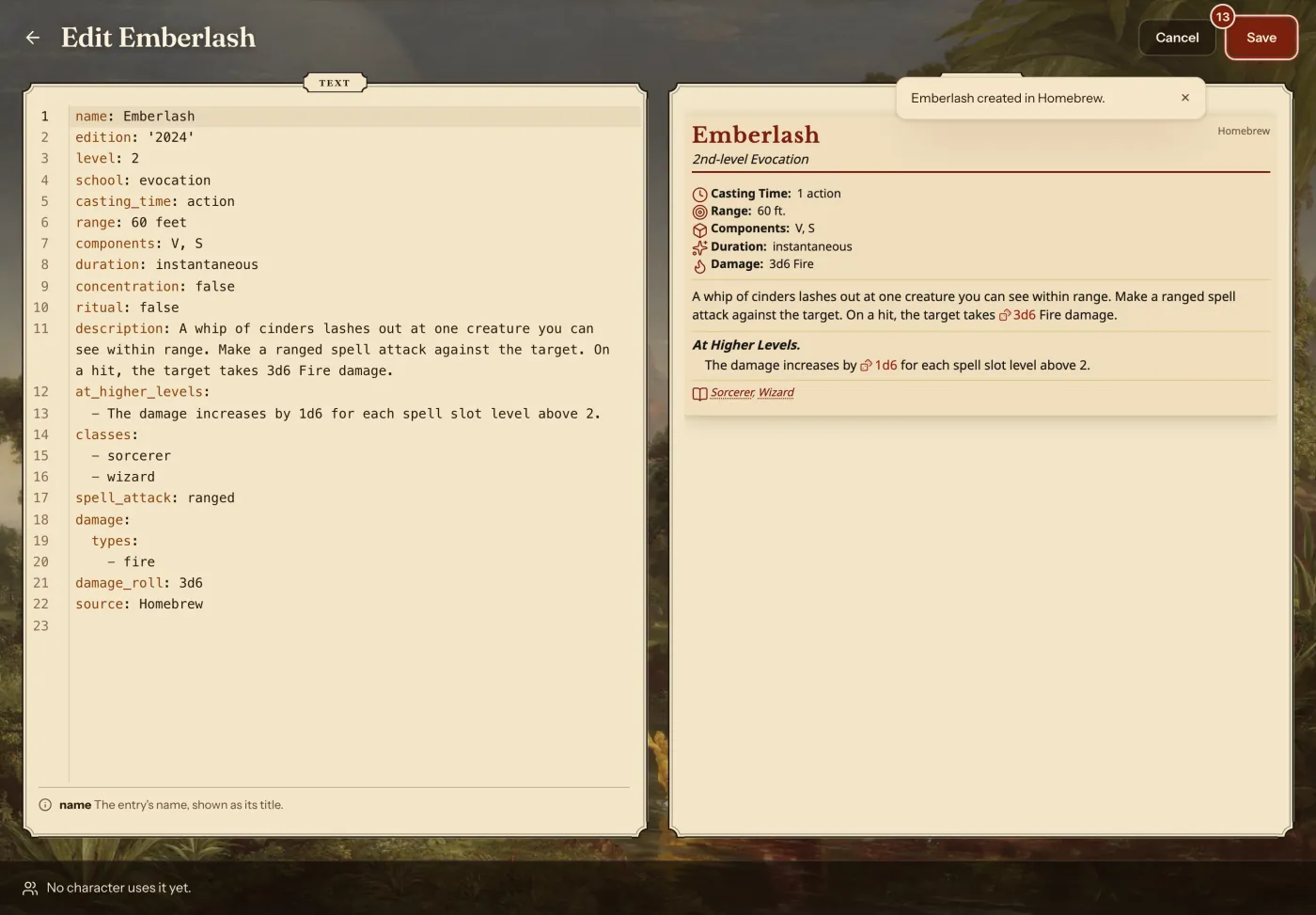
- Open your entry in the Compendium, press ⋯ at the top of its card, then Edit. The same editor opens.
- Change what you like, then press Save. The line at the foot says how many characters use it: they all change with it.
Press Cancel to leave. If you typed something, Archivist asks Discard what you typed?, with Keep editing and Discard.
The twelve kinds, and a guide for each
Each guide has ready lines to paste over the starter text.
| Kind | What it gives a character | The guide |
|---|---|---|
| Spell | A spell to prepare and cast, with its save DC or attack and its damage. | Make a homebrew spell |
| Monster | A stat block with rollable attacks, for a fight or a companion. | Make a homebrew monster |
| Item | A magic item with charges, attunement and bonuses. | Make a homebrew magic item |
| Weapon and Armor | An attack row, or an Armor Class. | Armor and weapons |
| Feat | Ability increases, proficiencies and effects. | Make a homebrew feat |
| Species | Speeds, senses, resistances and traits. | Make a homebrew species |
| Background | Skills, tools, ability increases and an Origin feat. | Backgrounds |
| Class and Subclass | Hit points, proficiencies and features level by level. | Make a homebrew class, Make a homebrew subclass |
| Optional feature | An invocation, a boon or a tracker of your own. | Optional features |
| Condition | A condition with real effects on rolls. | Track conditions and make your own |
Questions
Create does nothing. What now?
It takes you to the first marked line. Fix the line the words under it describe, and press Create again.
Can I start from an entry that is already there?
Yes. Find it in the Compendium, press Copy to my compendium, then ⋯ and Edit on your copy. To copy the same entry again, rename the first copy, then copy once more.
Where do I see every line a kind can have?
Type a letter at the start of a line: the editor offers them all. The Compendium format guide explains how a line works.
How do my players get my homebrew?
On the Compendium page, press ⋯ beside your compendium in the Compendiums list, then Export, and send them the zip file. They press Import homebrew, then Archivist files and Continue, and drop it in. Share homebrew with your party shows each step.
Will I see it on my phone?
Yes. Your homebrew stays in sync on every device you sign in on, along with your characters and their portraits.
Keep going
- Compendium format guideHow a line works, the twelve kinds of entry, and the homebrew editor's help.
- Make a homebrew spellWrite it in the homebrew editor, then prepare it and cast it from the sheet.
- Make a homebrew class and play itCopy the closest class, change it in the homebrew editor, and play it.
- Find spells, monsters and items in the CompendiumOne search for every kind, filters for each kind, and your compendiums in one list.
- Share homebrew with your partyExport your compendium as a zip; they bring it in with Import homebrew.